Music, news and Up next
Choose a compatible media app from the launcher. DriveDeck's own Radio is in the same group. DriveDeck displays the app's browse pages, current playback and the queue it publishes. What appears depends on the app, its account and its own media service.
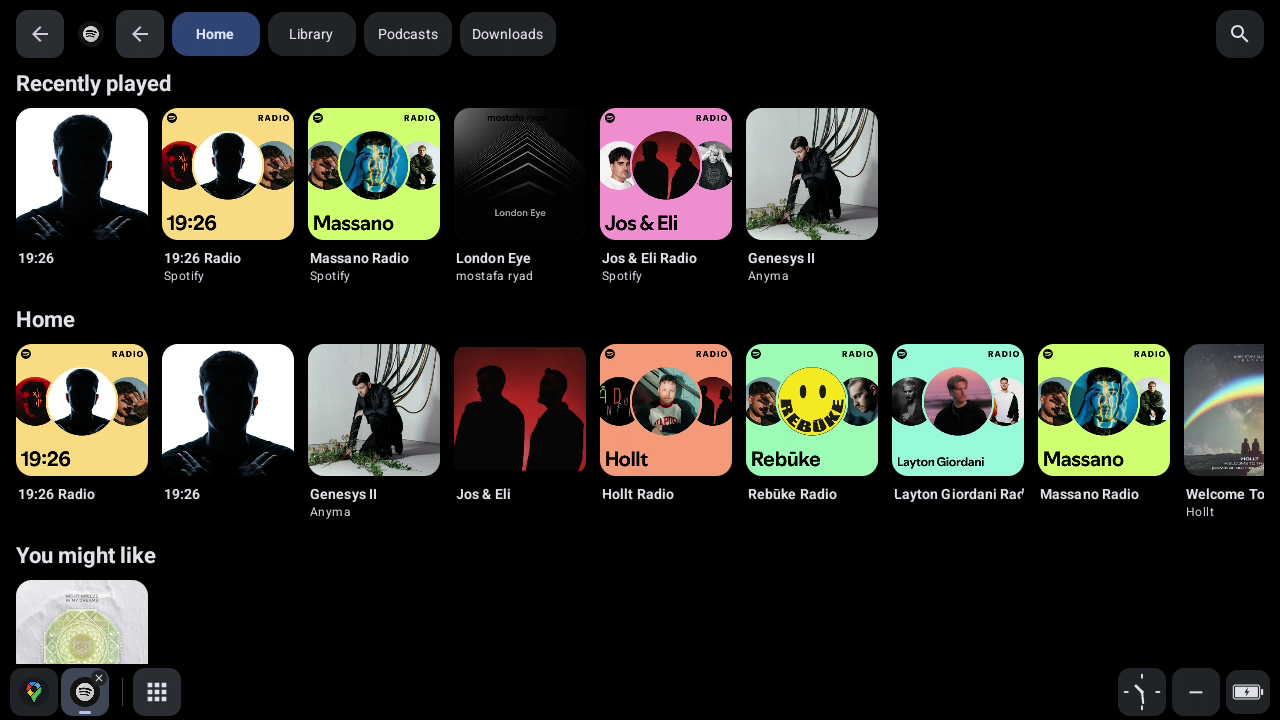 Myspoti Home on the emulator and Desktop Head Unit.
Browse and play
Open Home, Library or another tab provided by the app. Select a playable item to start it, or open an album or playlist to browse its tracks. Now playing shows the current title, artwork, progress and available controls. The player keeps playback controls in the taskbar while another screen is open.
Why an app's car screen can differ
An app can offer a media browser, a screen built with the Android for Cars App Library, or both. The library's version and the Car App API level are different numbers: an app built with library 1.9 can declare a lower minimum API level. The app and host must agree on a supported level, and an app may also restrict which hosts it accepts.
DriveDeck offers Car API level 9 and negotiates down for apps built for older levels. Level 9 adds spotlight sections, chips, banners, condensed items, search headers and provider color themes, and DriveDeck draws them. An app that accepts only Google's own host still refuses DriveDeck, whatever the API level. See Google's Car App API level guide and library release notes.
The screenshots here show Myspoti, a separate app.
Spotify
Spotify plays through DriveDeck's own player: you see what is playing and get the controls. The launcher marks Spotify as partly working, because the app has to be opened on the phone first.
Spotify's own car screen is a separate matter. A static inspection of a Spotify 9.1.94.1929 APK found a host allowlist for Google's projection app, which points to its car screen rejecting DriveDeck on an ordinary phone, independently of the Car API level. A live DriveDeck-to-Spotify handshake and Spotify's Library, Search and Liked Songs screens have not been verified. Other versions may differ. Myspoti, a separate app that the patch set supports, is a patched option for browsing Spotify.
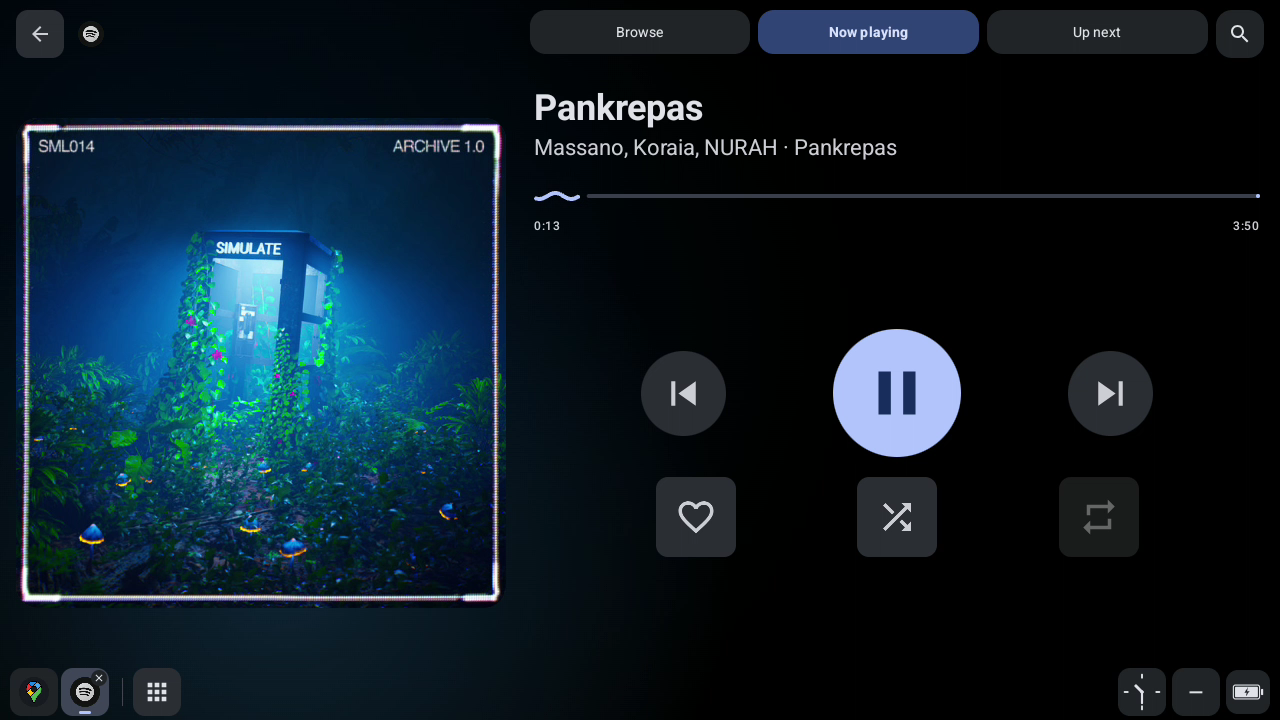
Up next is the published queue
Open Up next from the player to see the entries the current app publishes after the current item. Select a row to request that occurrence. The tab appears when upcoming entries are available. A working Next button alone does not mean an app publishes a queue, so Next can still work when the tab is absent.
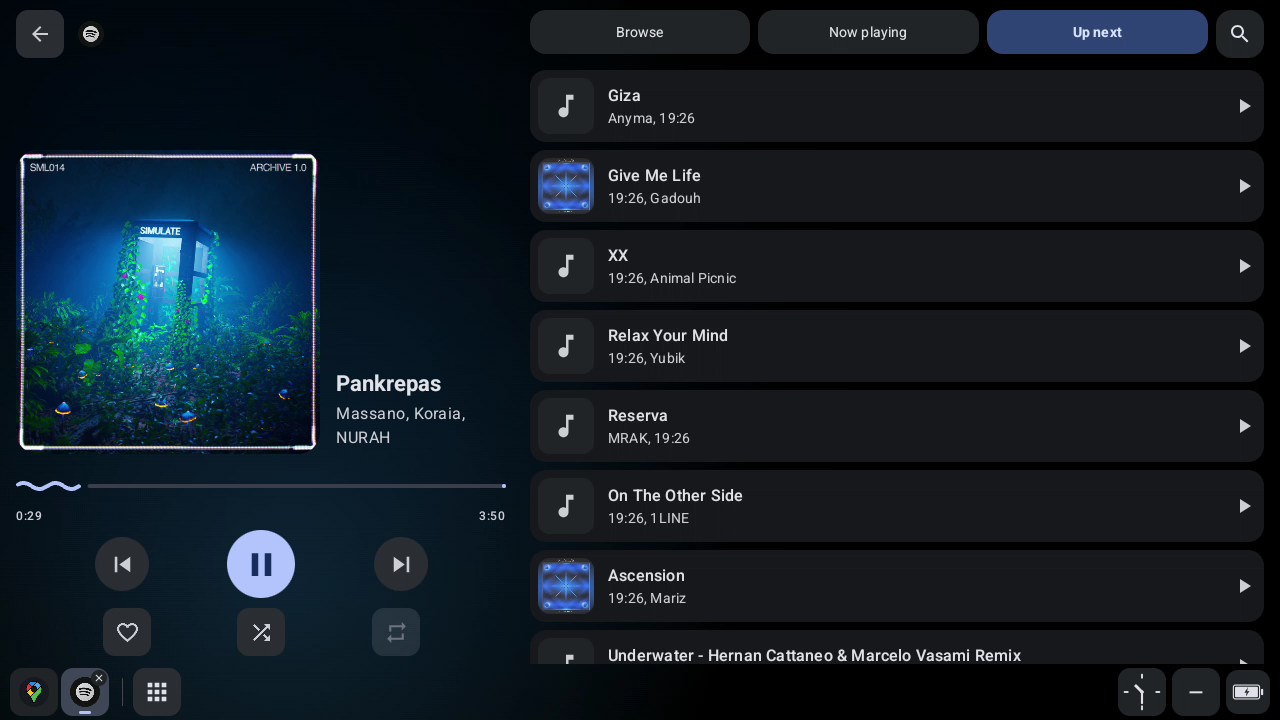
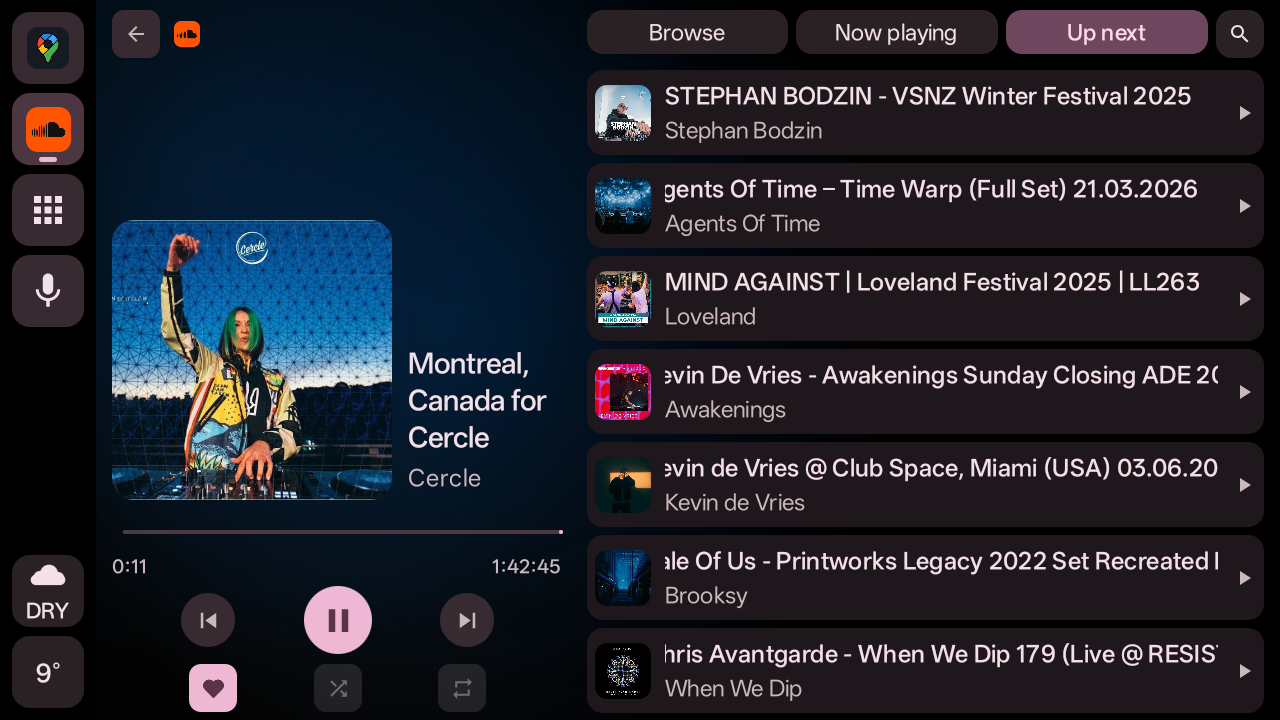
SoundCloud Home and queue
The SoundCloud Home in Android Auto patch supplies the phone's Home as an ungrouped cover grid and exports its active playback queue to the media session. Tracks and mixes can play; albums and playlists open. If the phone Home cannot load, the patch falls back to SoundCloud's original car Home. Use a supported app version, apply the patch and sign in on the phone. Provider availability and account access still apply.
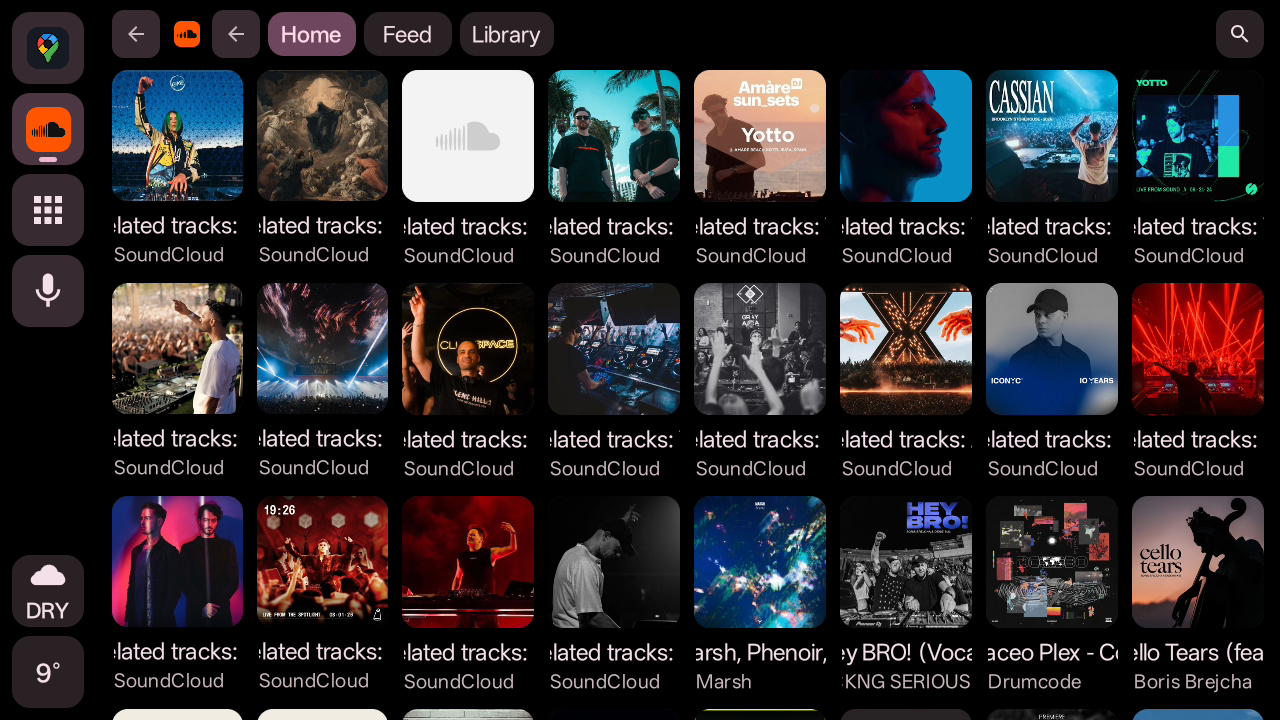
Spoken newspaper articles
For the supported AD, Het Parool, Trouw and Volkskrant builds, the Android Auto nieuws patch provides a Nieuws tab with spoken articles from the publisher's home feed. Selecting an article starts the feed at that article. Previous and Next move through the ordered feed, and Up next shows later articles when the app publishes its queue. Paywalled articles retain the publisher's normal access rules.
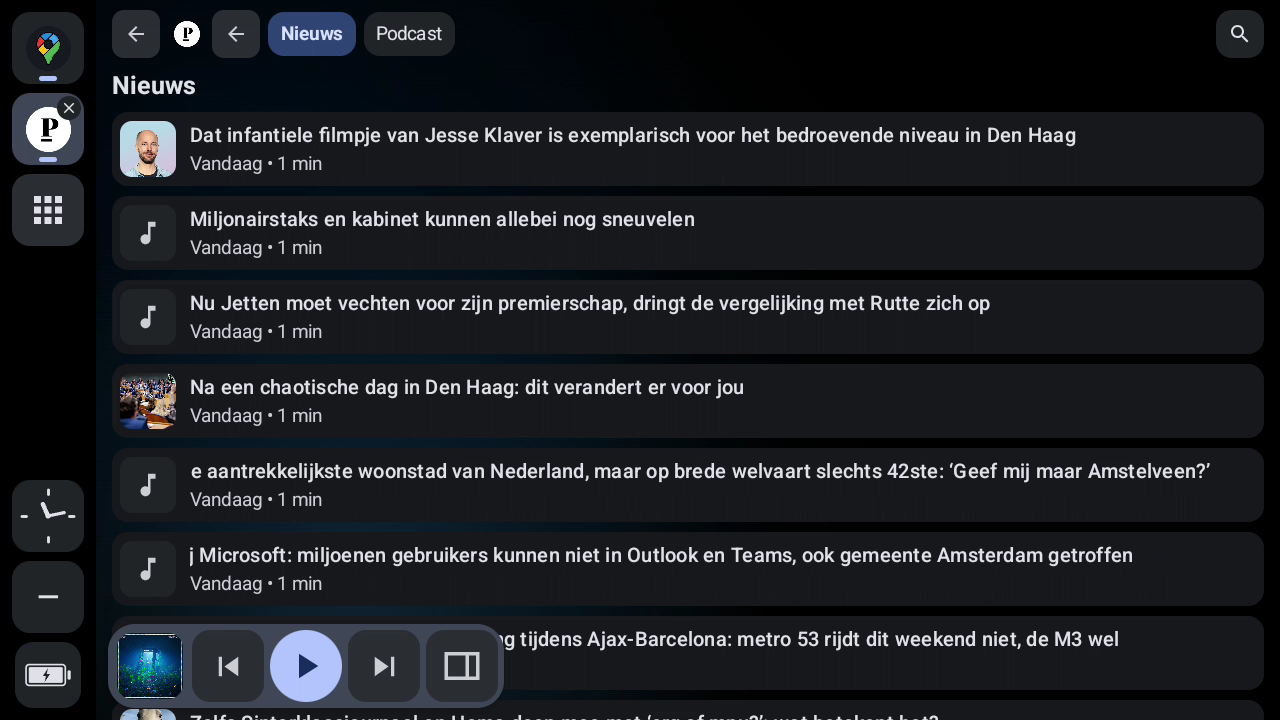
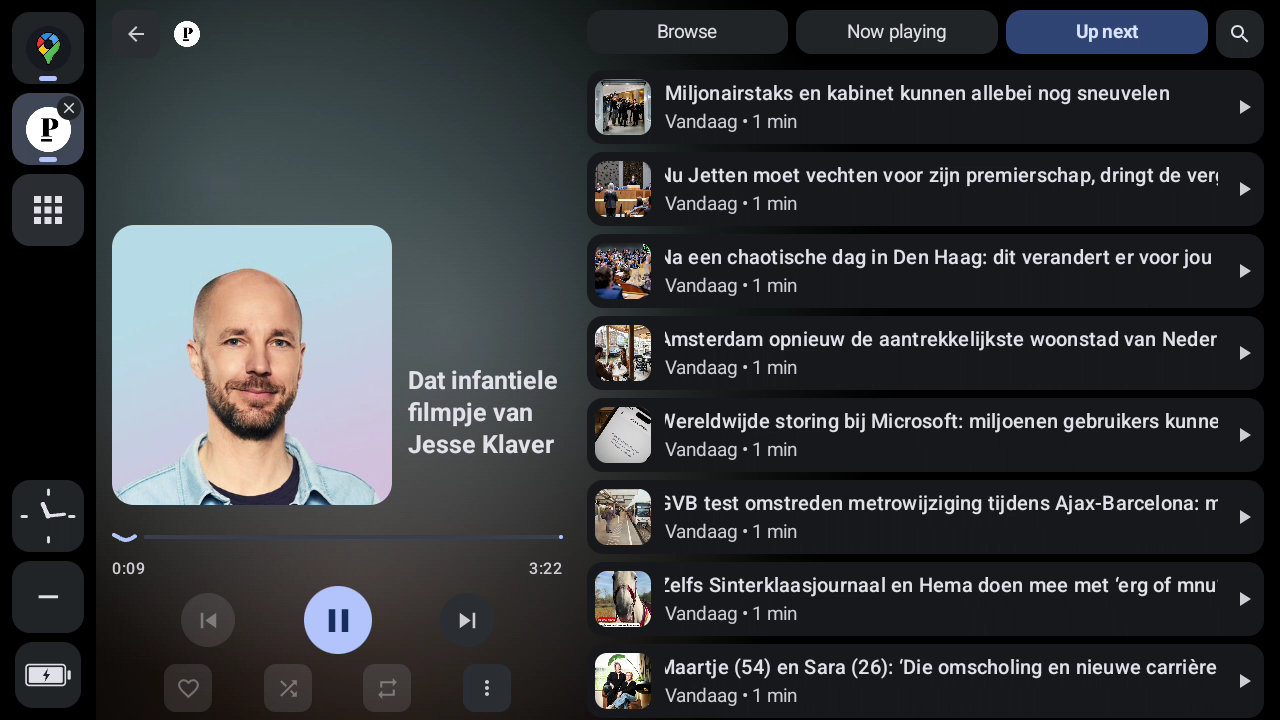
A feed can be empty if the publisher's content is unavailable. AD's patch depends on audio bundles the phone app has rendered: open and refresh AD's front page on the phone, then try Nieuws again. During this capture, Het Parool displayed articles and an upcoming queue; AD's Nieuws tab opened but was empty. Check the newspaper patch pages for supported versions and current limits.
The player
One player appears for every media app, in the same place and with the same controls, including apps that used to draw their own playback strip. It shows whichever app is playing, and Radio too.
Taskbar along the bottom. The player is part of the taskbar, between your app shortcuts and the status widgets. It shows the artwork, then the artist and title on one large line, then like, play or pause and next. A long line scrolls. On a narrow display the like button goes first and then the line, so the artwork, play and next stay. The like button appears only for apps that offer it.
Taskbar on the left or right. The player becomes a slim rail on the opposite edge, with the artwork, play or pause, next and like. The rail takes its own space, so the map and apps end at it and nothing floats over them.
Tap the player. On the map, it opens a card in the top corner. The compact card has one line of artist and title, a close button and previous, play, next and like. The full card adds the artwork, progress, shuffle and repeat. Tap the card's line to switch between the two cards, and close it to return to the bar or rail. On any other screen, such as an app, Settings or the launcher, a tap opens Now Playing full screen and never switches you to the map.
Now Playing from the taskbar. While something is playing, tap the playing app's icon in the taskbar to open Now Playing. Its back arrow leads to the app's library. With nothing loaded, the icon opens the app's library.
Radio. Radio uses the same player. Its line reads "Station – Song", or the station alone when no song is known. In the bar and the rail, next means the next station. The full card shows the LIVE control. The compact card, the taskbar player and the rail do not. See Radio.
On short displays such as 1280 by 480, the full card fits without scrolling. There are no size settings for the taskbar or the text: DriveDeck uses one set of sizes that fits every display.
Choose which card opens first
In Nav bar and player, Player layout sets what a tap on the map opens:
| Choice | What a tap opens |
|---|---|
| Full | The full card first. |
| Compact | The compact card first. |
| Bar only | No card: the tap opens Now Playing. |
With the taskbar along the bottom, Player beside the map puts the card on the left or the right. Beside a side taskbar the card opens on the rail's side, and the choice is not offered. See Settings.