Review and clean up apps with Canta
Canta uses Shizuku to manage installed apps without root. It displays community descriptions and recommendations where available. Those recommendations are context, not proof that removing a package is safe on your specific phone.
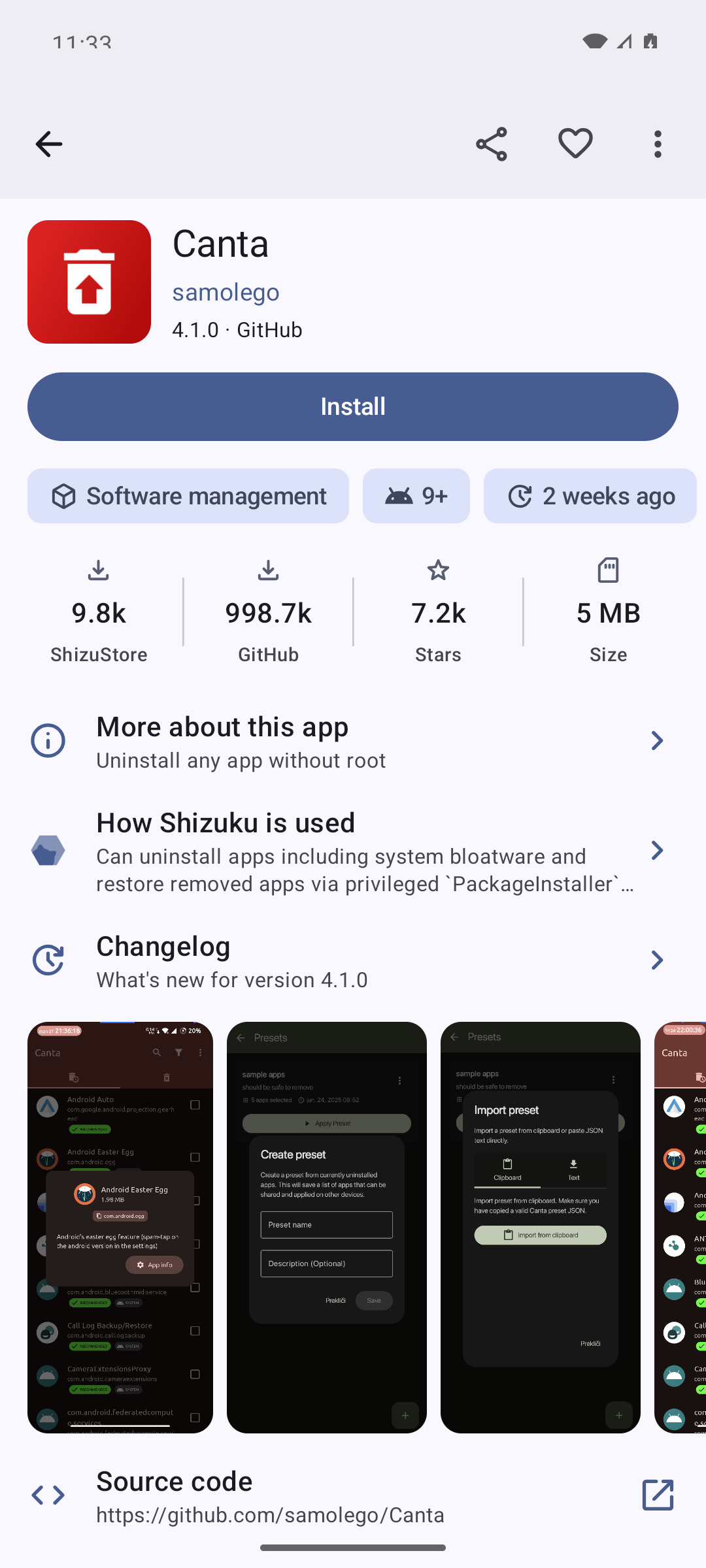
Review one app at a time
- Start Shizuku, then install Canta from its official project or a source you trust.
- Open Canta, find a package, and read its description and dependency warnings. Identify what it does on your device before selecting it. To see installed apps as well as system apps, open the filter and clear Only system.
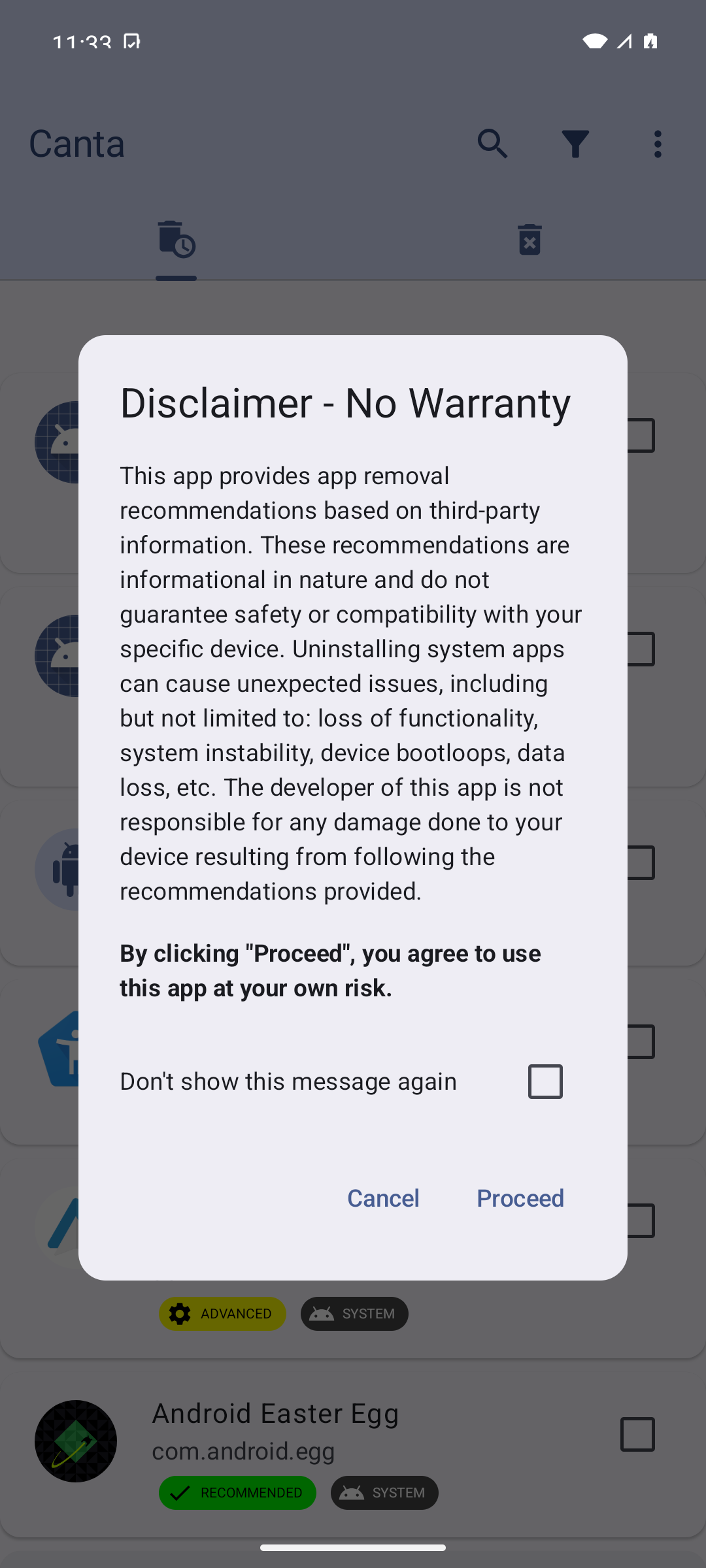
- Use the removal action and review Android's and Canta's confirmation screens. Grant Canta Shizuku access when prompted.
- Check that the phone and the features you use still work before making another change. Keep a record of what you changed.
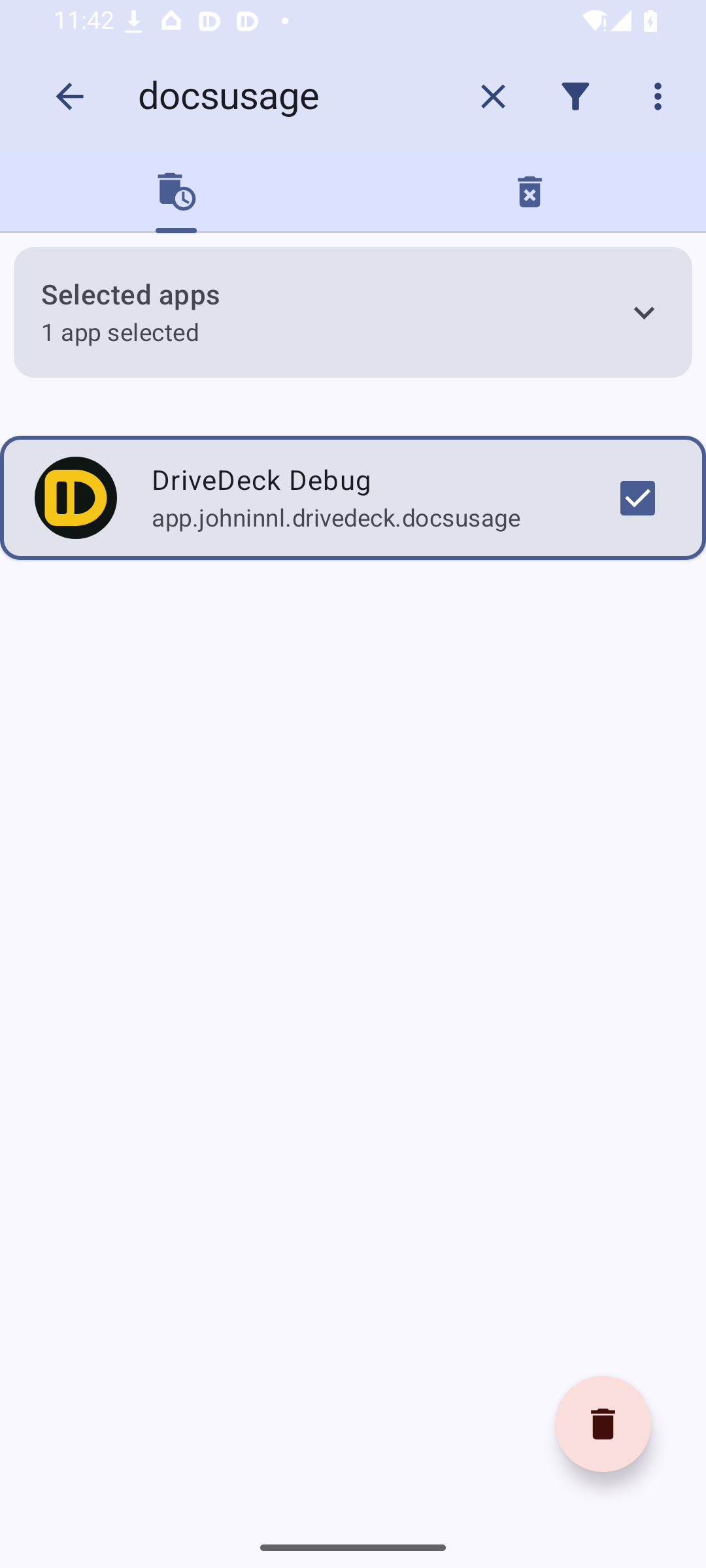
Avoid removing essential system components or the only working launcher. Removing an app for a user can remove that user's app data. Restoring the package does not necessarily restore that data, and critical removals can cause boot failures or require a reset. Back up anything important and keep a recovery route.
Restore a system app
Canta's usage guide describes its Uninstalled apps view: select a previously removed system app and use Reinstall. This works when the system package remains available; it is not a guarantee that every app or its data can be recovered. If you are uncertain about a package, leave it installed.