Taskbar and status widgets
The taskbar keeps navigation, media, the launcher, the assistant and a few status widgets within reach. This page covers the taskbar and its small status widgets. The big grid of widgets that you arrange on the phone is the dashboard.
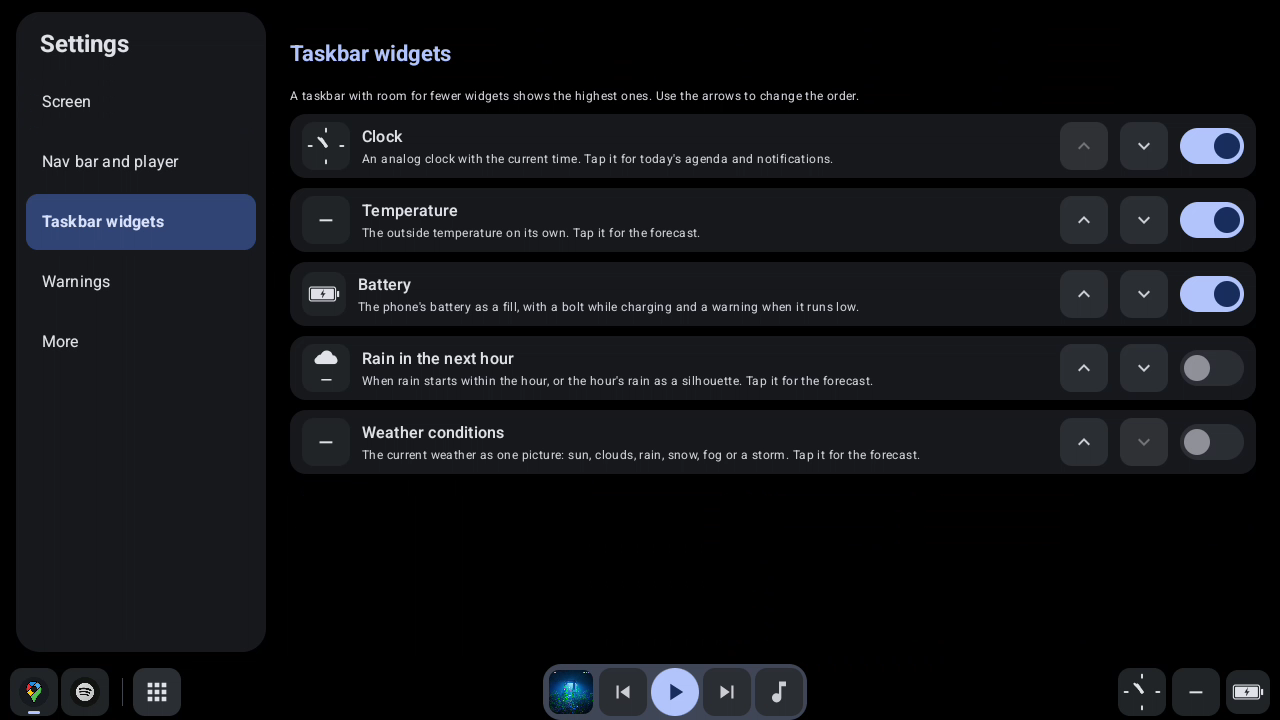
The taskbar widget settings on the head unit. The player in this capture's taskbar is from before 2.7.
What is in the taskbar
From the edge where it starts:
- The navigation app you are using, then the media app you are using. While something plays, tapping the media app's icon opens Now Playing.
- The Apps button, which opens the launcher and, when you tap it again, the dashboard.
- The assistant button. See Voice assistant.
- A turn pill with the next turn when you are on another screen than the map, and a call pill during a call. See Navigation and maps and Calls and messages.
- The player. See below.
- Your status widgets.
When a parked app is on screen, its taskbar tile also provides the close control; when it is in the background, its tile returns to the app.
Choose where the taskbar goes
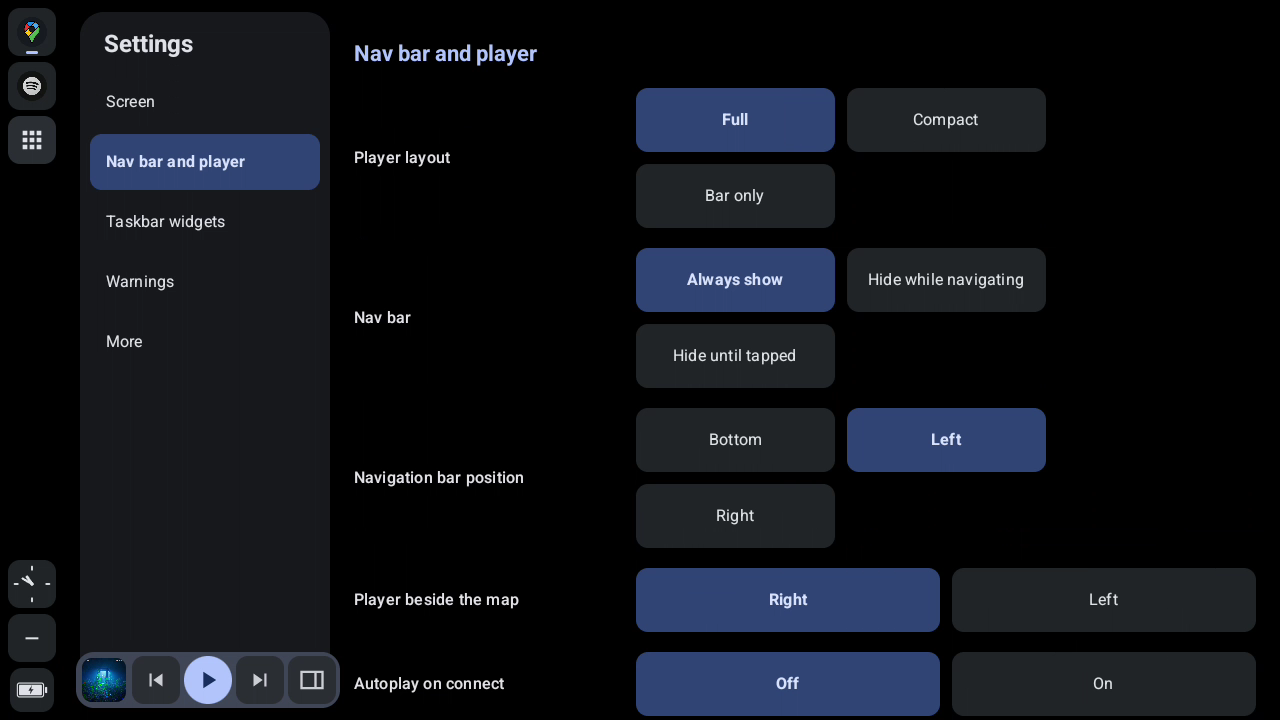
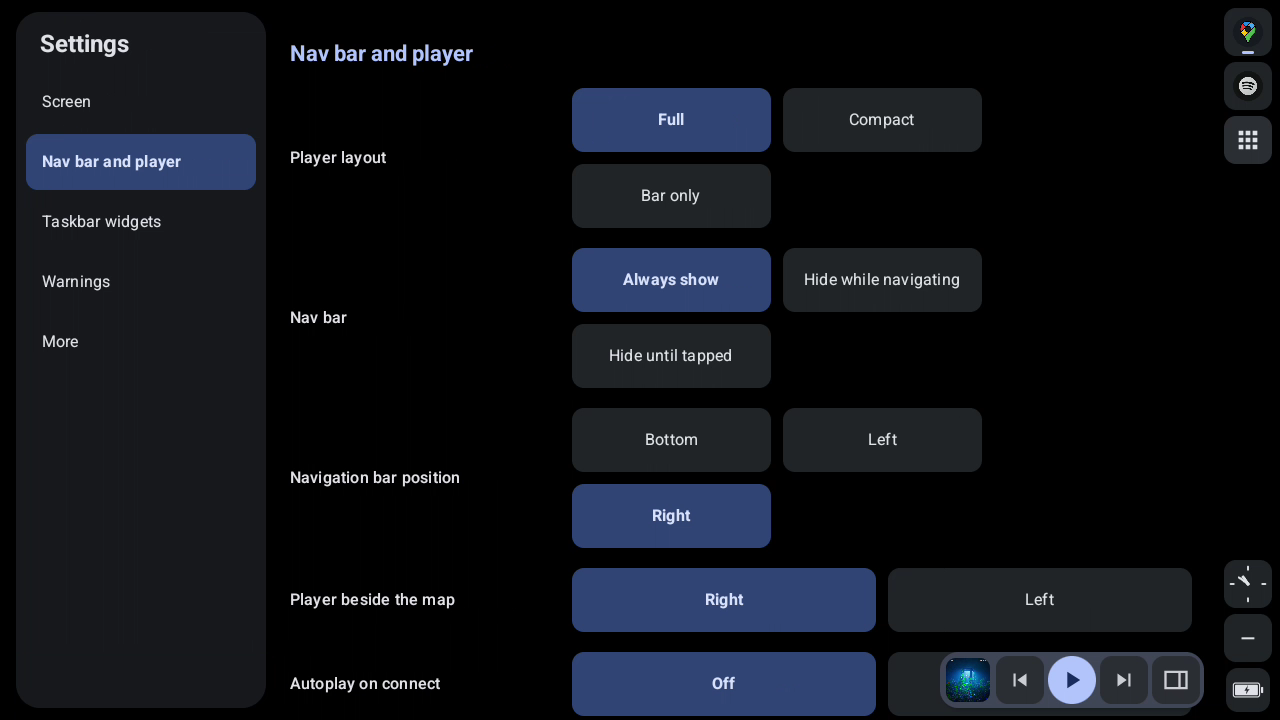
Move the taskbar to the bottom, left or right, and choose whether it is always shown, hidden while you navigate, or hidden until you tap. Left suits left-hand-drive cars and right suits right-hand-drive ones, and a side taskbar leaves more height for the map on a shallow screen. The settings reference lists the choices.
Where the player sits
Since 2.7 the player is part of the taskbar. With the taskbar along the bottom, it sits between your shortcuts and the status widgets, with the artwork, one large line of artist and title, and like, play and next. With the taskbar on the left or right, the player is a slim rail on the opposite edge. Tap it to open a card on the map, or Now Playing from any other screen. There are no taskbar size or text size settings. See The player.
Choose and order status widgets
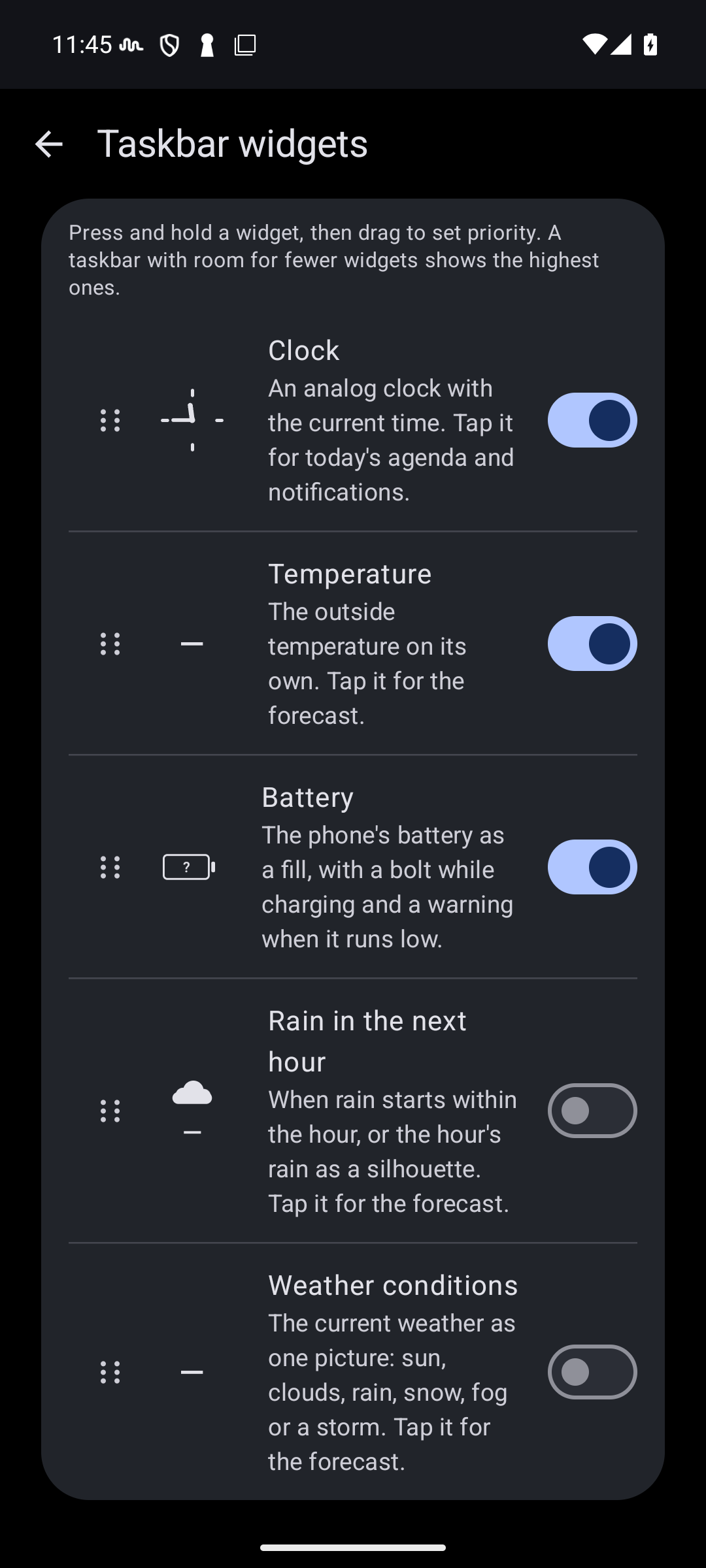
You can enable Clock, Temperature, Battery, Rain in the next hour and Weather conditions independently. The clock, temperature and battery are on by default. Reorder them by dragging on the phone or using the arrows in the car settings. When there is not enough room, the higher-priority widgets appear first. Weather and rain information depend on available location and weather data.
Tapping the clock opens Today, with your calendar, the weather, quick controls and notifications. Tapping the temperature, rain or weather widget opens the forecast. The battery widget only shows the phone's charge.
For rain, select Rain timing to emphasize when rain is expected, or Next-hour silhouette for a visual view of the coming hour. A missing forecast can reflect unavailable data rather than a widget being disabled.