Settings reference
The phone's DriveDeck home screen groups the car settings; many of the same controls are available under Settings on the car screen. Changes made in either place apply to the other. Some choices appear only when their prerequisite or experimental switch is enabled.
The groups are Apps, Parked apps, Radio, Screen, Nav bar and player, Taskbar widgets, Dashboard widgets, Work profiles, Voice and assistant, Saved places, Warnings and More. On a tablet, a foldable or a phone held sideways, the groups open beside Home.
Apps and defaults
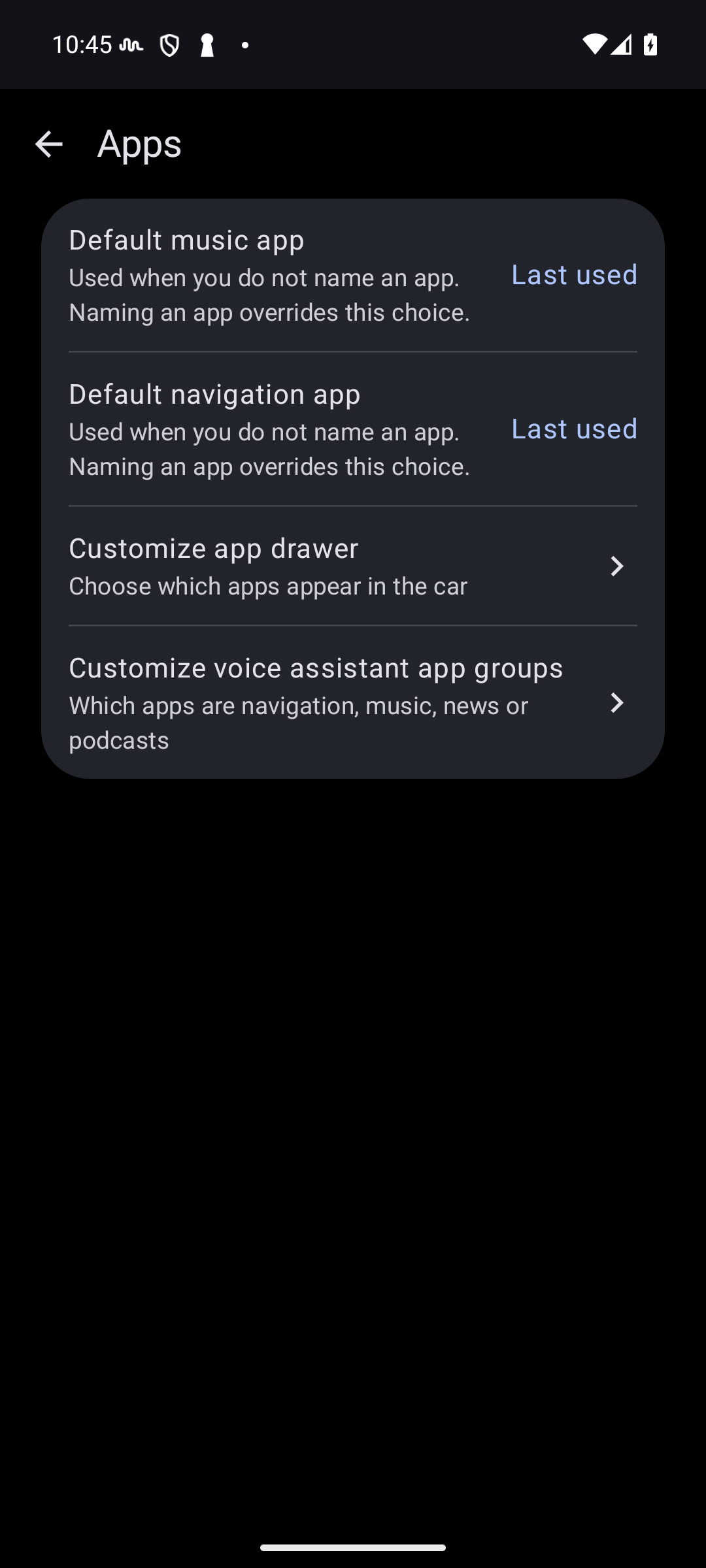
Open Apps on the phone:
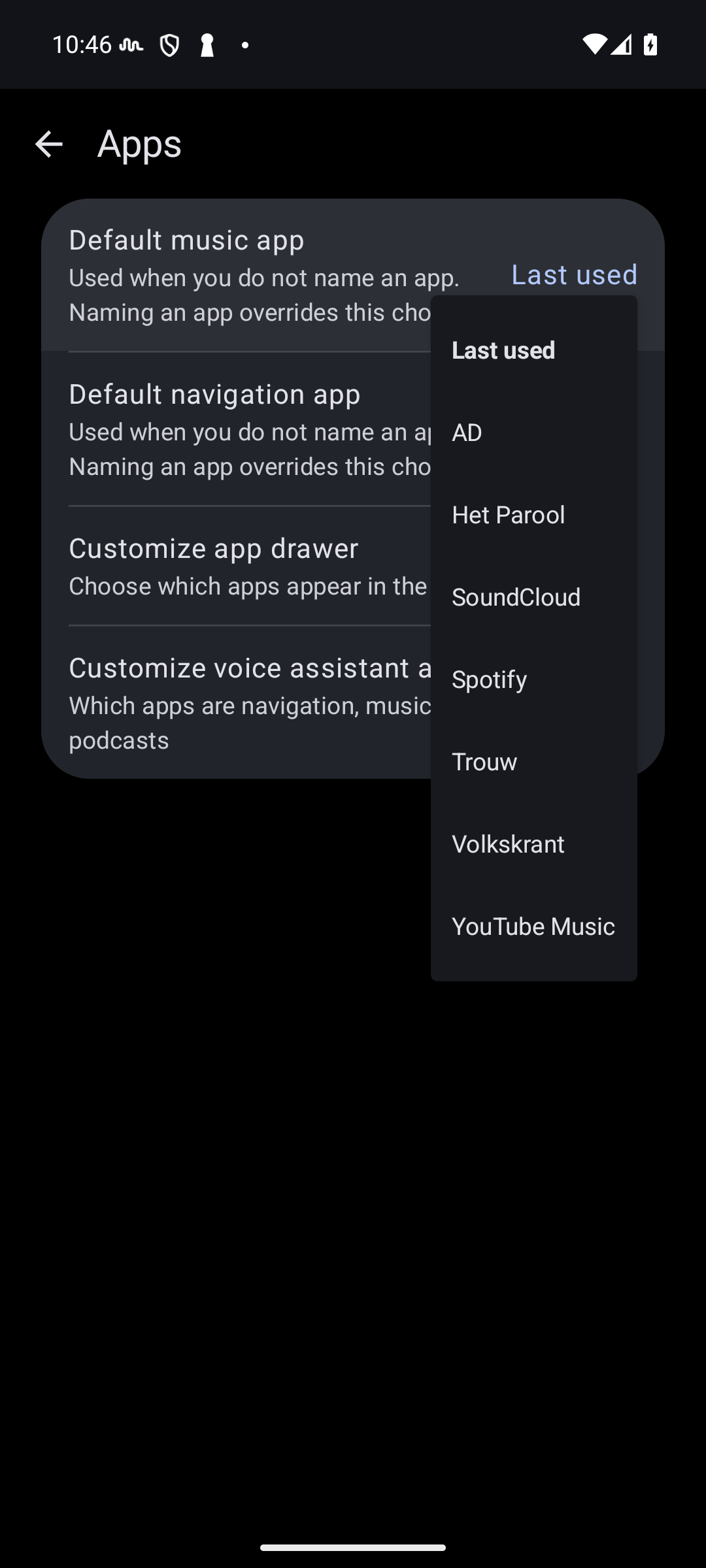
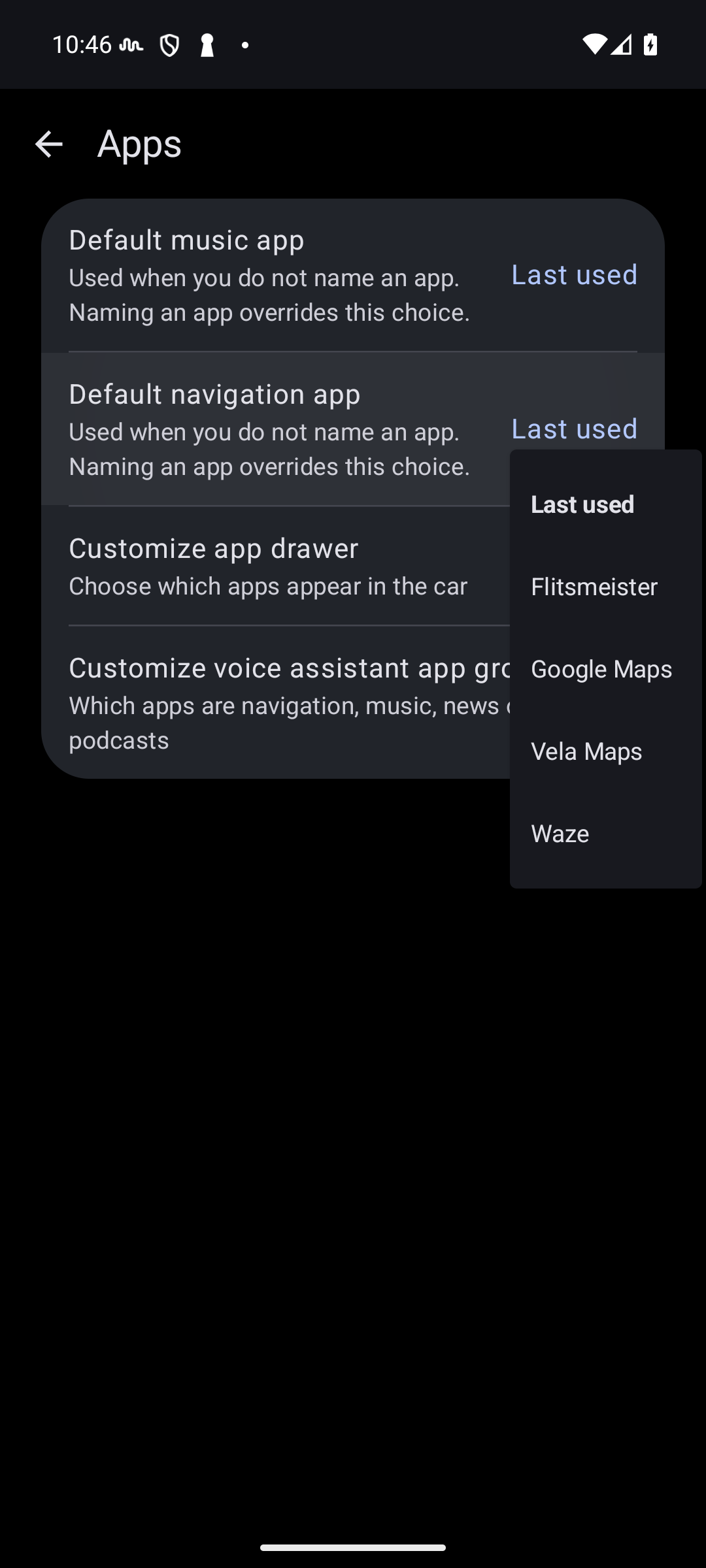
- Default music app and Default navigation app select the app used when a request does not name one. A named app overrides the default. DriveDeck's own Radio is always offered as a music choice.
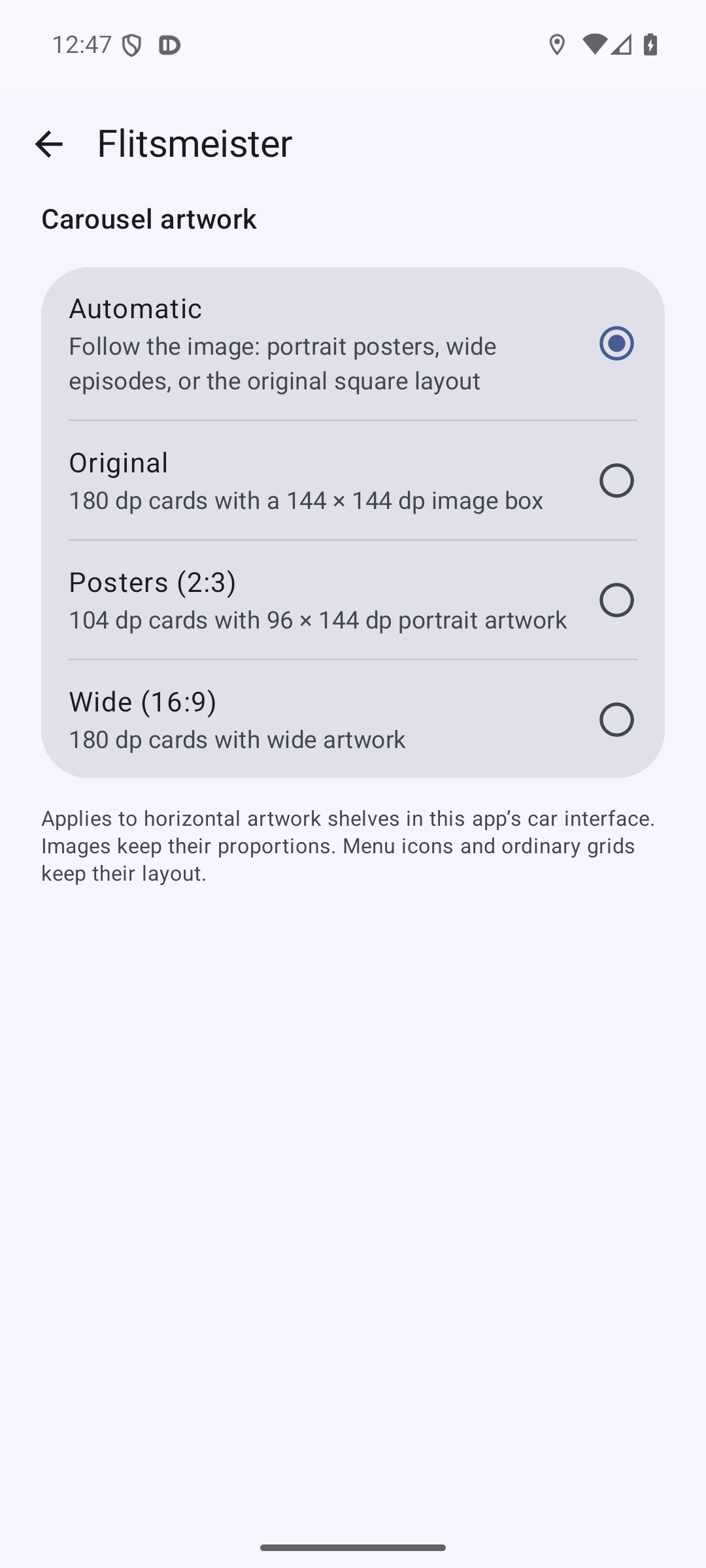
- Customize app drawer shows or hides each available app. For supported car-app entries, the detail arrow also opens carousel presentation options.
- Customize voice assistant app groups controls which apps the assistant treats as navigation, music, news or podcasts. An app's actual provider capabilities still determine what it can play.
Choose an app's carousel layout
In Customize app drawer, open the detail arrow for a supported car-app entry. The choice applies to that app's carousels:
| Choice | Presentation |
|---|---|
| Automatic | Follows the artwork: portrait posters, wide episodes or the original square layout. |
| Original | Square image boxes on standard-width cards. |
| Posters (2:3) | Portrait artwork on narrower cards. |
| Wide (16:9) | Wide artwork on standard-width cards. |
Use Automatic when an app provides a mixture of artwork shapes. A layout changes how the items are presented; the app still supplies the catalogue and controls what happens when you select an item.
Screen
| Control | Choices and effect |
|---|---|
| Open on connect | Start at Home or one of the available car screens. |
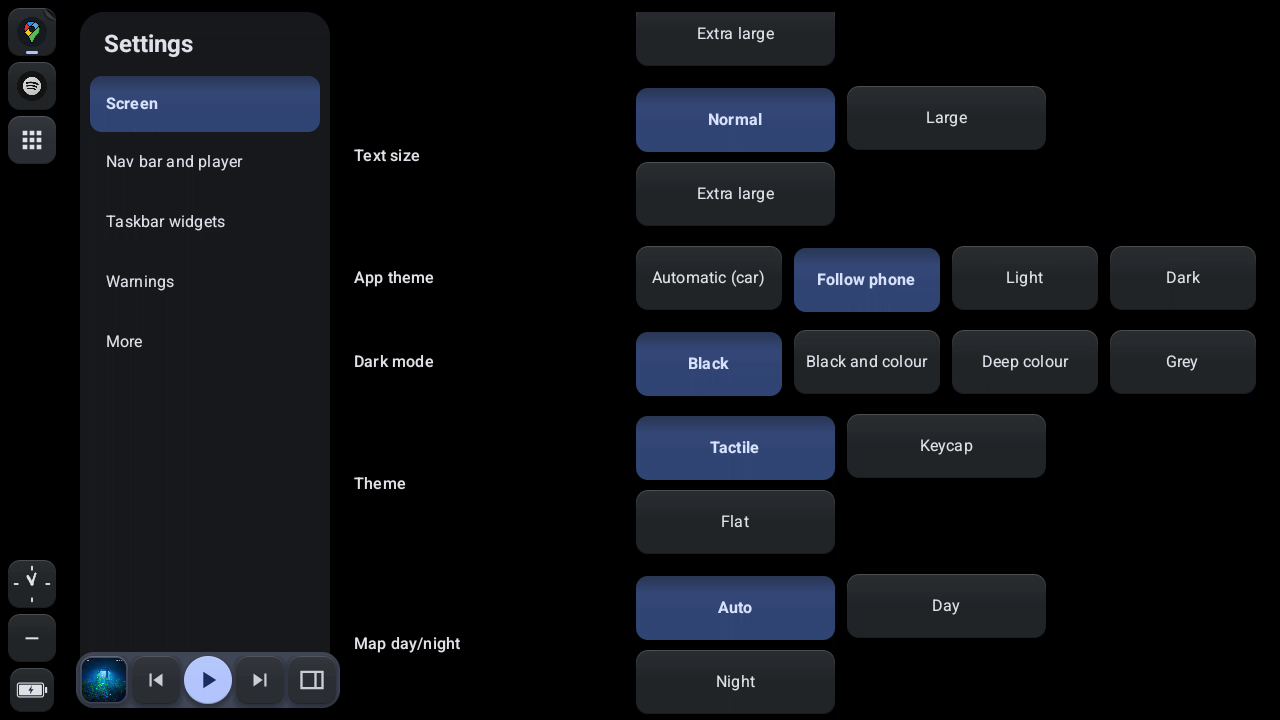
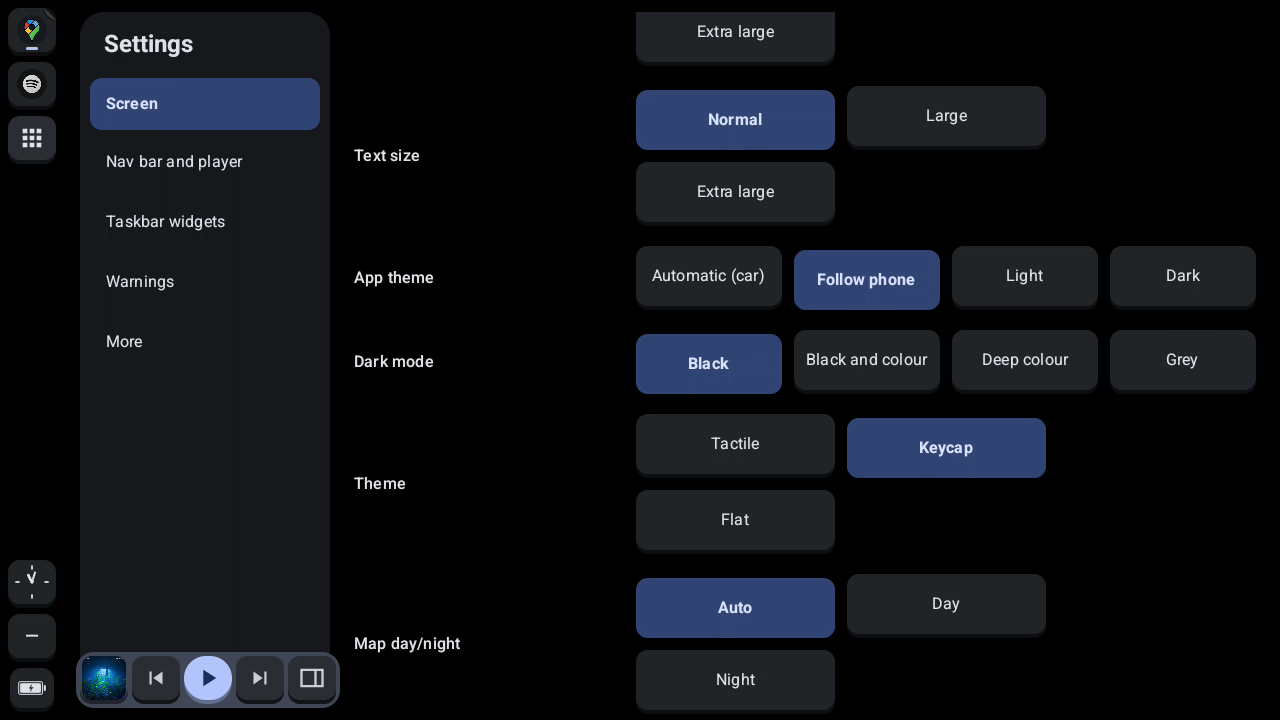
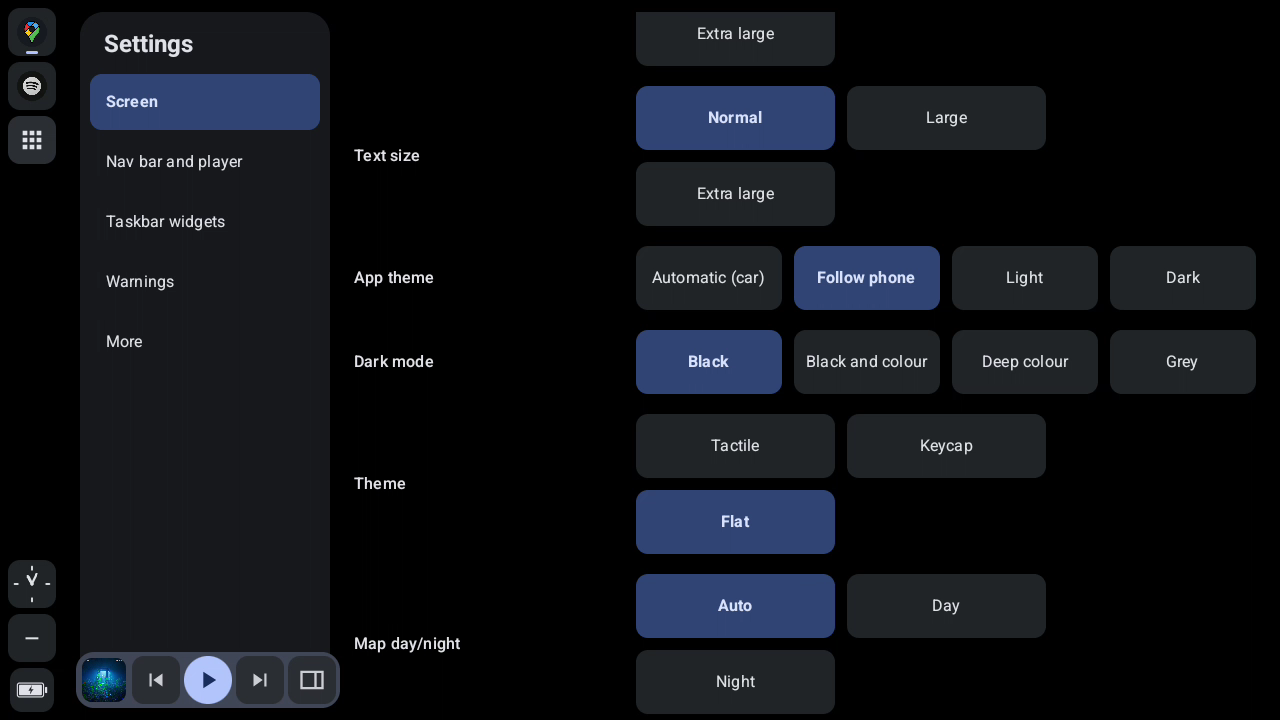
| App theme | Automatic (car), Follow phone, Light or Dark. |
| Dark mode | Black, Black and colour, Deep colour or Grey when a dark theme is available. |
| Buttons | Tactile, Keycap or Flat. |
| Map day/night | Auto, Day or Night. |
| Units | Auto, Imperial or Metric. |
| Screen size | Use the car's reported size or enter a size; crop or squash options address a mismatched display. |
| Car keyboard | DriveDeck keyboard, the phone keyboard or an enabled compatible keyboard. See Keyboard. |
| Car preview size | Last car, This screen or Custom. This controls the phone preview, not the car's negotiated resolution. |
There are no taskbar-size or text-size settings. Since 2.7, DriveDeck uses one set of sizes that fits every display, including a short 1280×480 one. Use Screen size and Screen fit below if the picture does not fit your display.
The Preview button on the phone's home screen shows the car screen on the phone, so you can try the settings without a car. It loads the assistant the way a connected car does, and lets it go again when you switch to another app.
Fit the picture to one vehicle
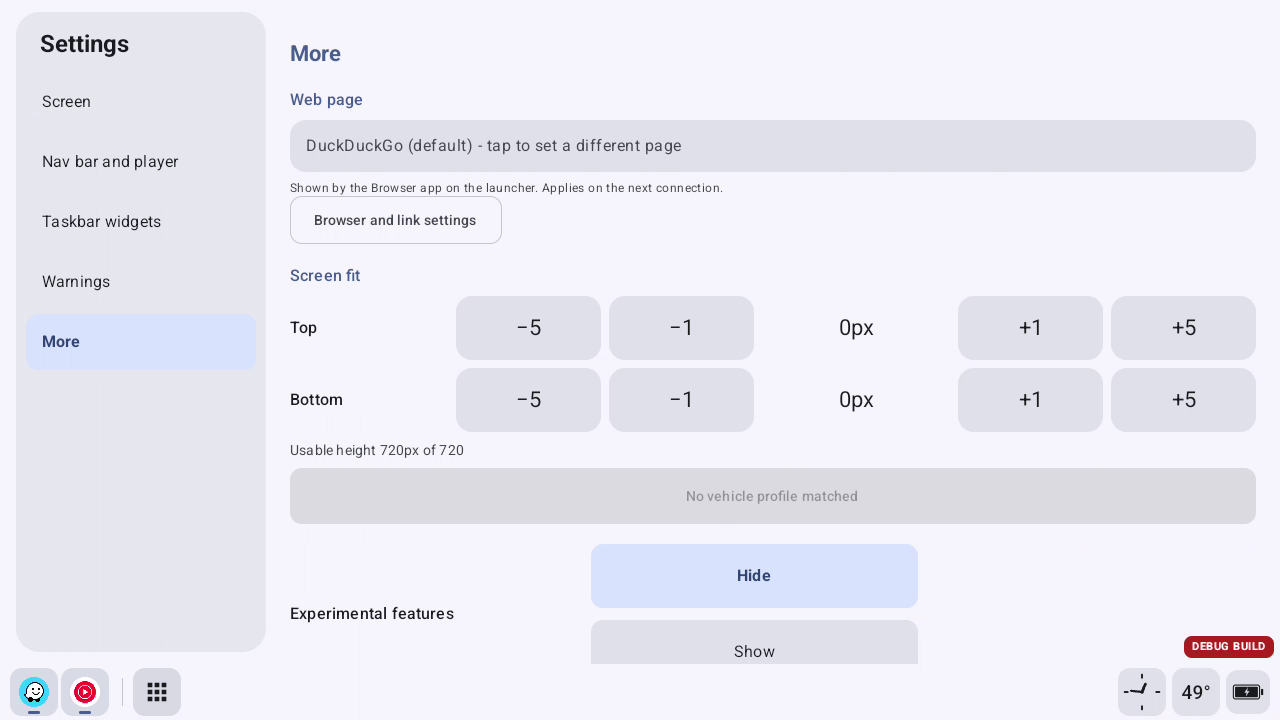
On the car screen, open Settings → More → Screen fit. Use Top and Bottom to adjust the clear space at each edge while viewing the result. The displayed usable height shows how much of the frame remains. Select Save for this vehicle to retain the fit in the matched vehicle profile. If DriveDeck cannot match a vehicle, the save control is disabled and says No vehicle profile matched.
Screen fit adjusts the top and bottom insets. The separate Screen size and Crop the edges / Squash to fit choices control the display size and how the picture fits it.
Nav bar and player
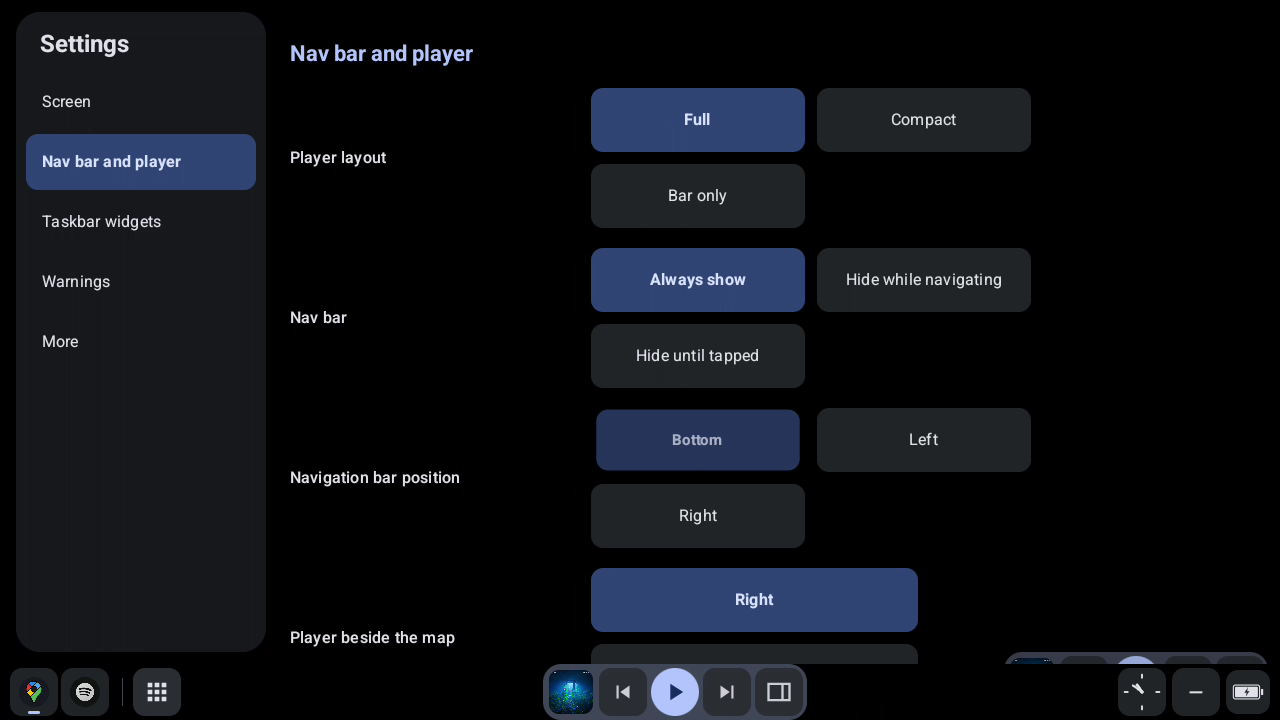
The taskbar player in this capture is from before 2.7. The settings it shows are current, except that Player beside the map is now offered only with the taskbar along the bottom.
| Control | Choices and effect |
|---|---|
| Player layout | Full or Compact picks the card that a tap on the player opens first on the map. Bar only opens no card: the tap opens Now Playing. |
| Nav bar | Always show, Hide while navigating, or Hide until tapped. |
| Navigation bar position | Bottom, Left or Right. |
| Player beside the map | Place the card on the left or right. Offered only with the taskbar along the bottom. Beside a side taskbar, the card opens on the side of the player rail. |
| Autoplay on connect | Request playback when connecting; the media provider still controls playback. |
The player itself is part of the taskbar: a segment of it along the bottom, or a slim rail on the opposite edge beside a side taskbar. See The player and Taskbar and status widgets.
Taskbar widgets
Enable or disable Clock, Temperature, Battery, Rain in the next hour and Weather conditions. Reorder them by holding and dragging on the phone or using the arrows on the car screen. When space is limited, higher-priority widgets appear first. When Rain is enabled, choose Rain timing or Next-hour silhouette. Weather data and location availability affect the results.
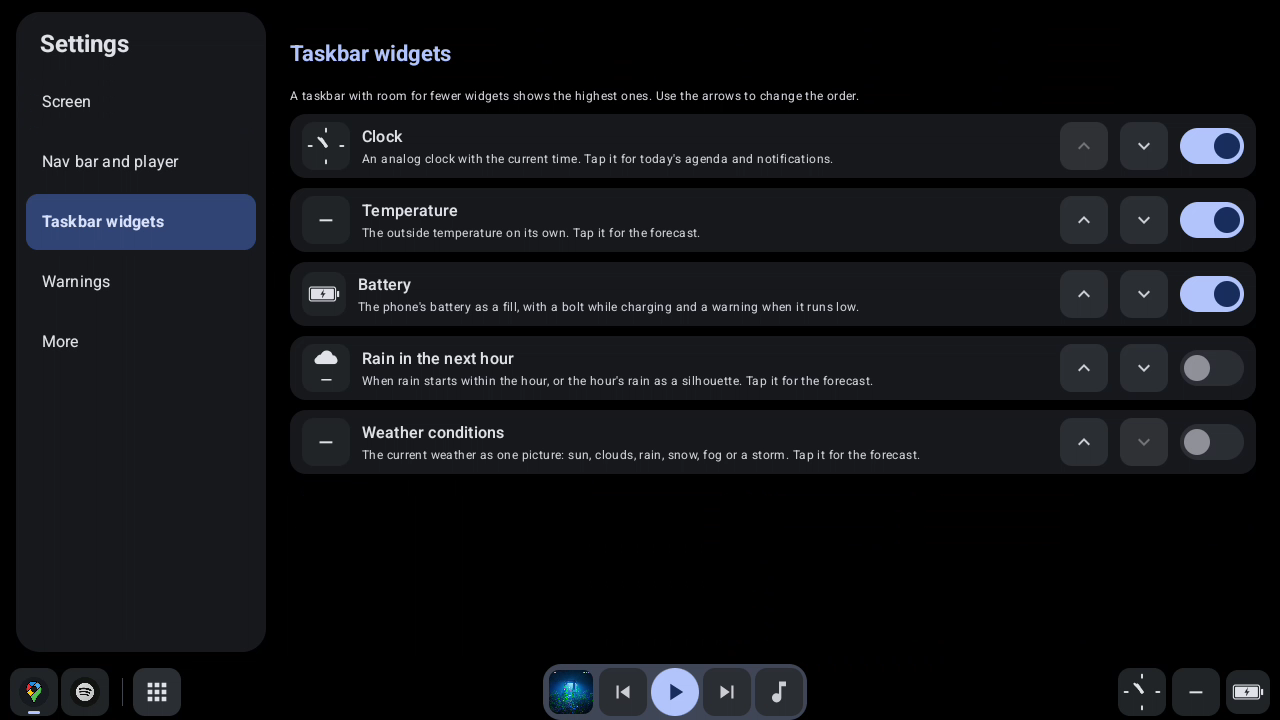
The player in this capture's taskbar is from before 2.7.
See Taskbar and status widgets for what each widget does when you tap it.
Dashboard widgets
Open Dashboard widgets to arrange the car's widget dashboard. It is a grid of 12 columns by 4 rows. Hold a widget to move it, tap it to resize or remove it, and add widgets from your phone's apps or DriveDeck's own Clock, Temperature, Weather conditions, Rain, Battery, Navigation and Media cards. There is no limit on the number of widgets other than the 48 cells of the grid, and no switch to hide the dashboard. See Dashboard and widgets.
Work profiles
Open Work profiles to bring a linked Android work profile's apps, media, messages, widgets and parked apps to the car. Include work profile is off by default and also enables DriveDeck in that profile. The screen shows each profile's status and the number of car and media services found. If Android offers it, Connect work and personal apps asks for the cross-profile permission. See Work profile.
Parked apps and browser
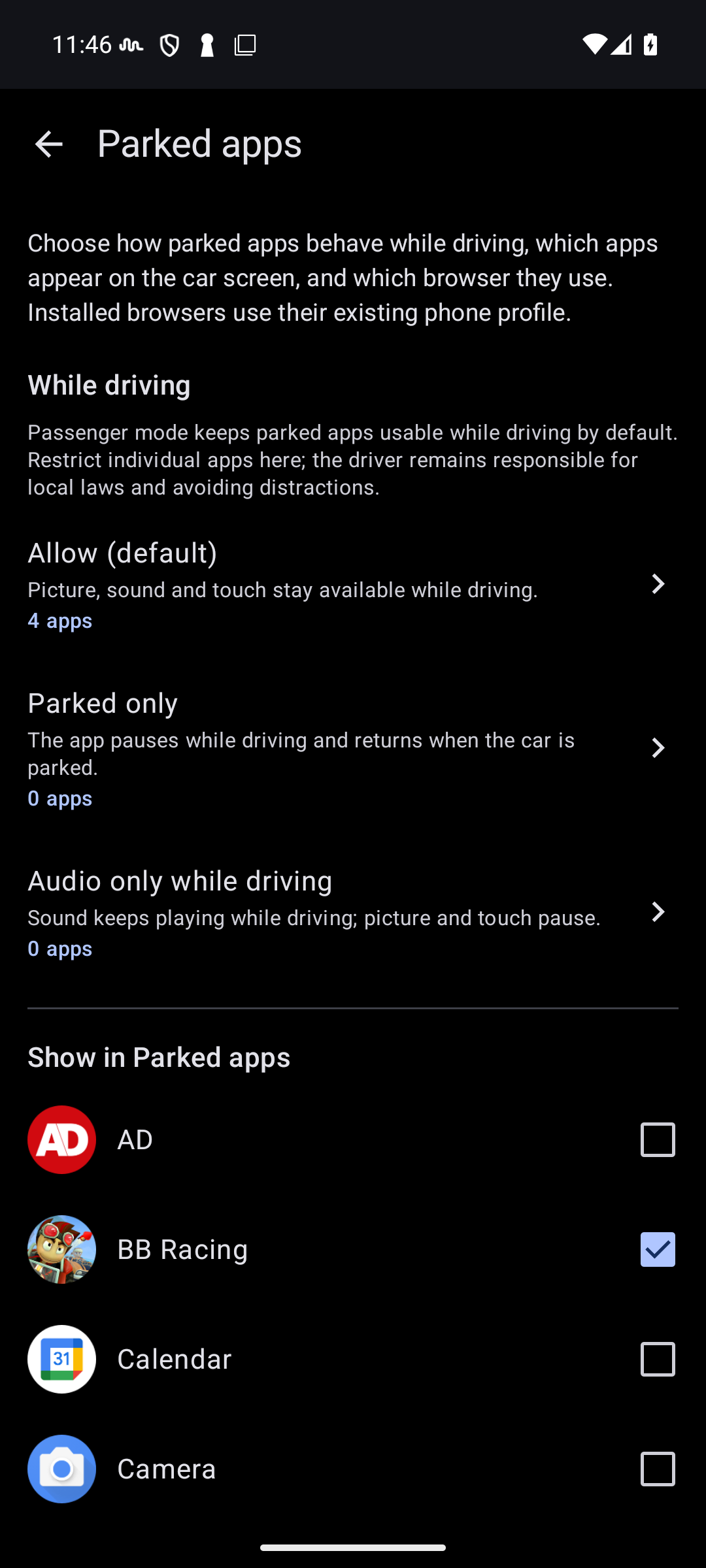
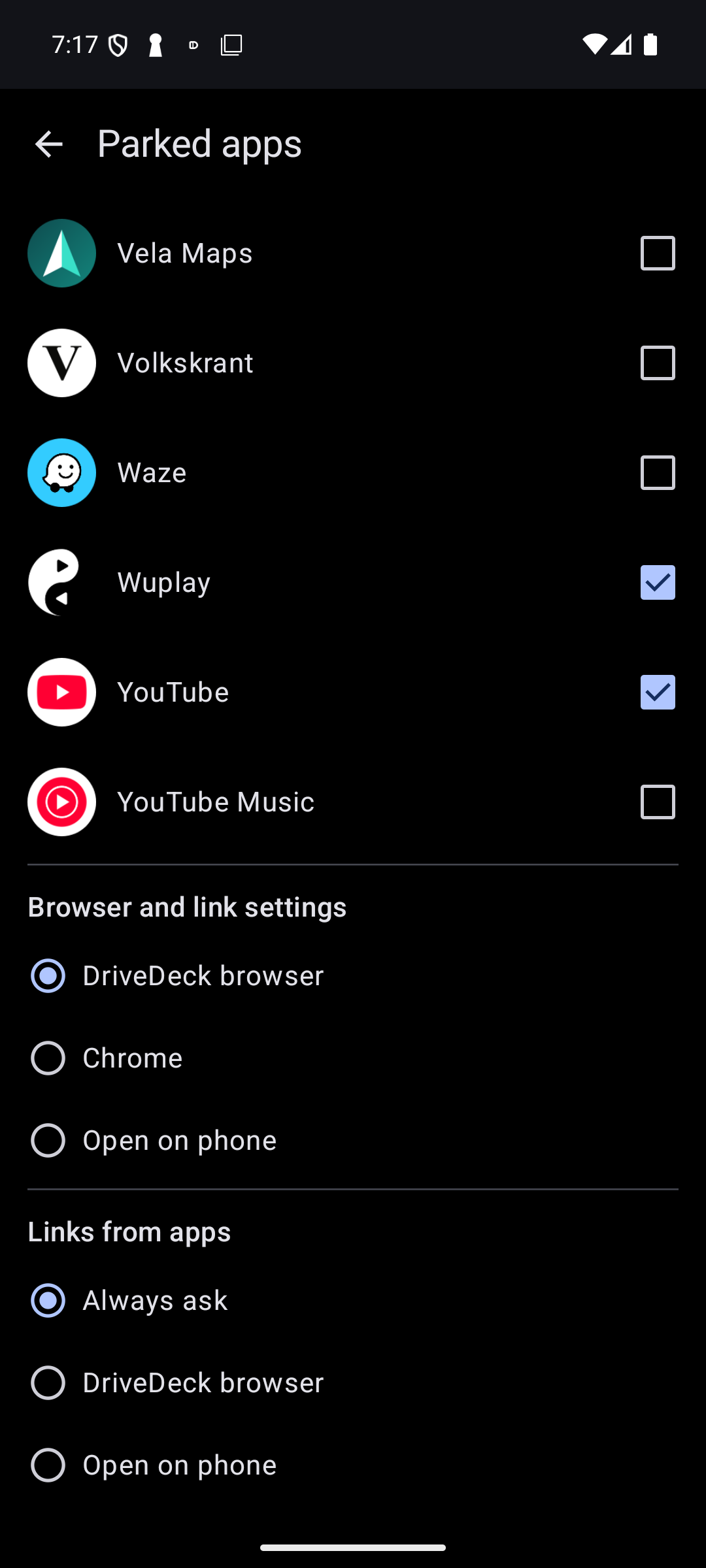
Under Parked apps, select which available phone apps appear on the parked shelf. Choose the built-in browser, a listed installed browser, or Open on phone. For links from apps, select Always ask, the DriveDeck browser, the phone, or the selected installed browser when available. See Parked apps for connection and protection limits.
While driving groups apps into Allow (default), Parked only and Audio only while driving. Choose a category, then an app to move it into that category. An app belongs to one category at a time. Existing car-screen overrides appear in Custom rules until replaced with a category.
The detailed browser screen-use editor is not reachable from the toolbar in the current published build. Use the phone's While driving categories to set a browser or app rule. When a link opens an Always ask prompt, Remember choice controls whether that choice is reused.
Radio
On the phone's DriveDeck home screen, open the Radio group. These choices are on the phone only; the car's own settings screen does not repeat them. See Radio for how the screen works.
| Control | Choices and effect |
|---|---|
| Station layout | Rows (default): the tabs run down the left and the stations form a list. Tiles: the tabs run along the top and the stations form a grid. Each choice shows a small preview. |
| Local stations from | Automatic or a country you choose. Automatic follows the country of the mobile network, then the SIM, then the phone's language, so after you cross a border it changes the next time you open Radio; the row names the country it has found. |
| Open Radio on | Local (default) or Favorites. Favorites applies once you have a favorite; until then Radio opens on Local. |
| Count plays for station rankings | On (default) or Off. When on, DriveDeck sends one anonymous request to the radio-browser.info directory after a station has played live for 10 seconds, at most once a day per station. It carries no account, device ID or location. See Radio privacy. |
| Favorites | Opens your favorite stations, where you can move each one up or down or remove it. |
Voice and assistant
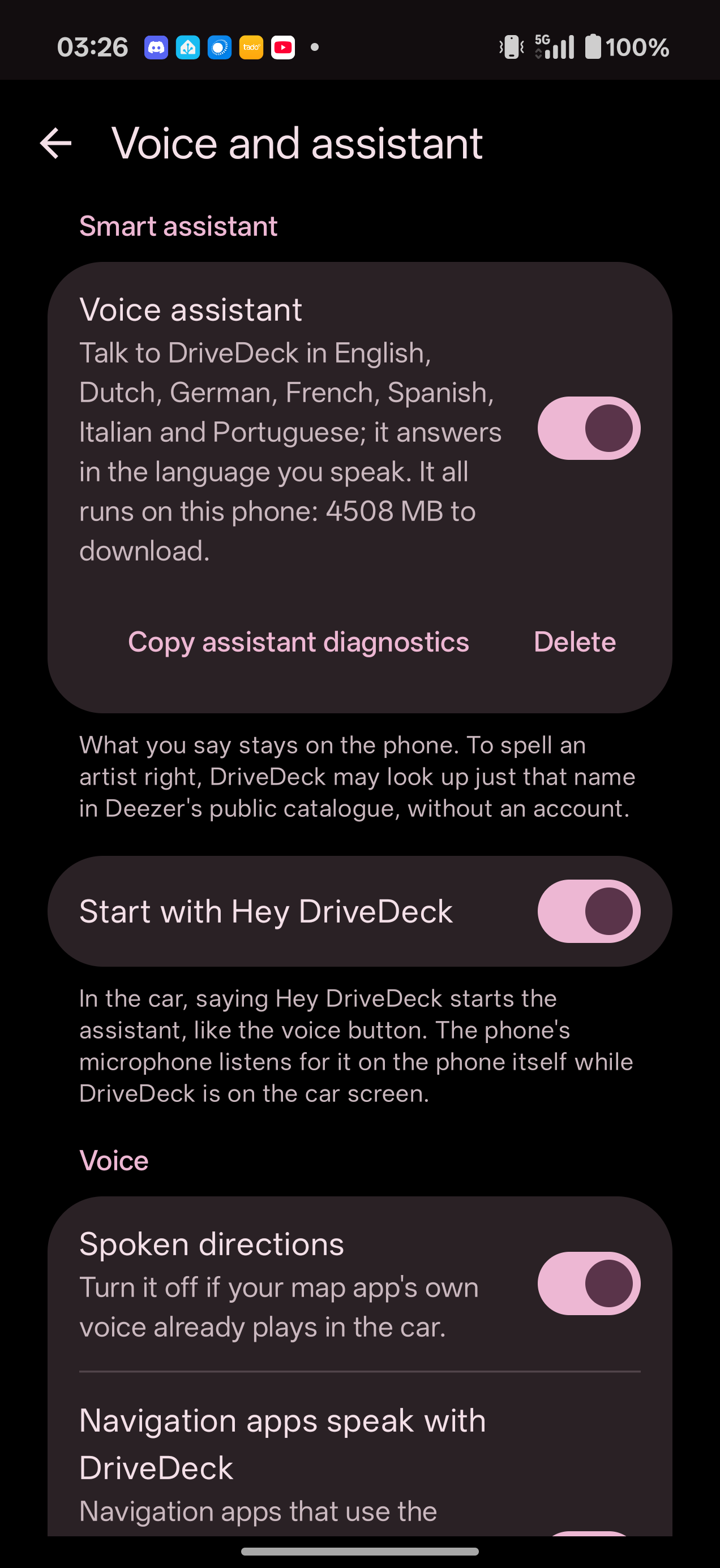
Smart assistant chooses between Off, On this phone (when supported; it offers its model download and diagnostics) and LiveKit (LiveKit Cloud), which adds the project's address, key and secret (or a pasted setup code), a connection status with Test connection, the languages you speak, a choice of how it should talk and its models, the optional Provider keys (stored encrypted on the phone and, for the models and the search service in use, sent with a conversation to LiveKit Cloud and the assistant on your phone; a key adds that provider's models and the Widest choice of models way to talk, and, once you pick languages you speak, only models that support them are offered), and web search. A LiveKit project alone is enough to start: six voice models are billed to it and need no provider key, and the settings mark each "LiveKit · billed to your LiveKit project". Models on your own keys always come first, so with a key that can run a way to talk you start on those, and a model billed to your project is used only after you have seen the note that says so. See LiveKit assistant for what that costs and what happens when the project's credit runs out. With the on-phone assistant, Keep listening after replies listens again after each answer. Start with Hey DriveDeck is off by default; when you turn it on, the phone's microphone listens for the wake word while DriveDeck is on the car screen. Spoken directions controls DriveDeck's spoken directions; Navigation apps speak with DriveDeck selects its speech engine for compatible apps. Android may ask you to choose the phone's preferred engine manually. Downloaded models can be managed in this section. See speech engine setup and restore.
Saved places, warnings and more
- Saved places manages the named destinations you can ask for, such as Home or Mum, and the optional address-lookup key. See Saved places. Keep personal addresses out of screenshots shared publicly.
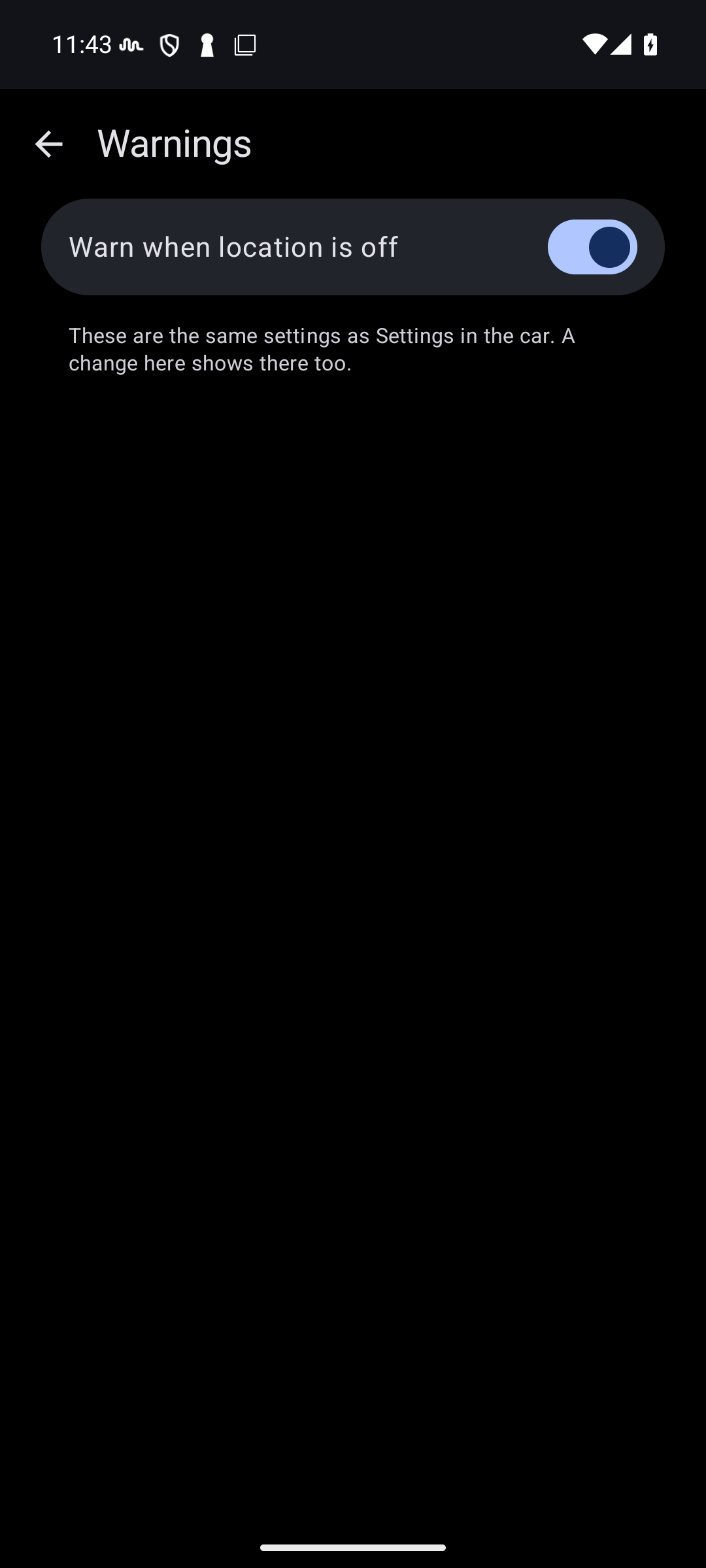
- Warnings → Location controls the location warning.
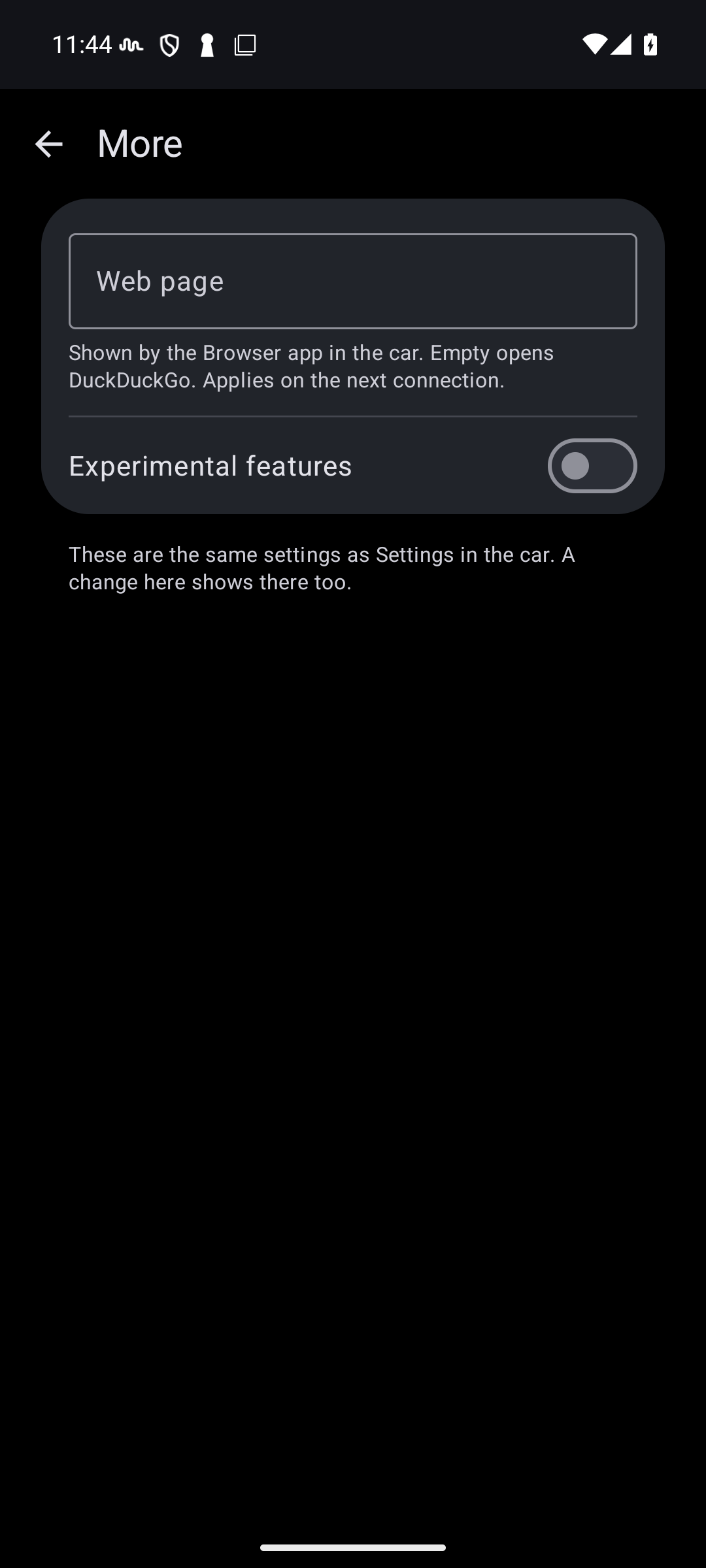
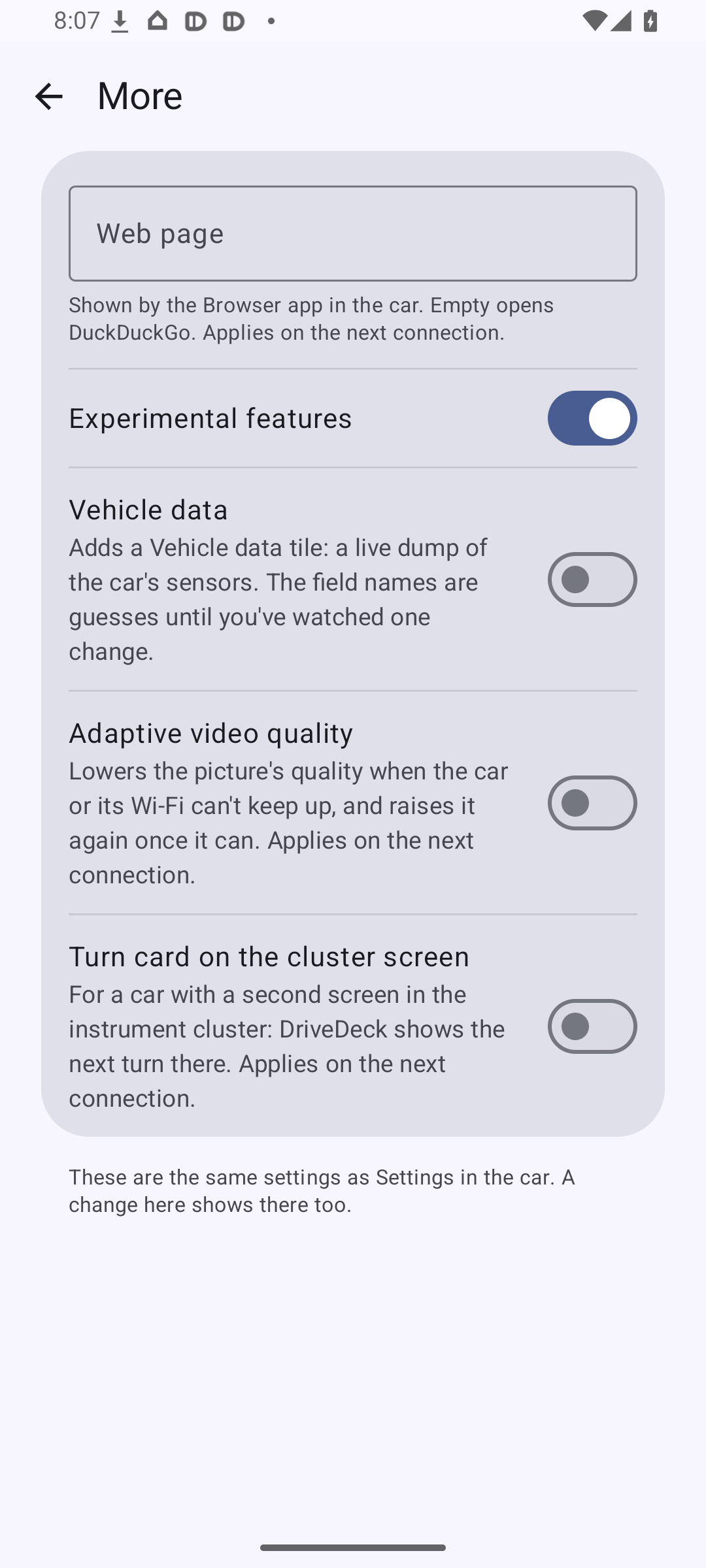
- More → Web page configures the web page. Experimental features reveals additional options: Vehicle data, Adaptive video quality, and Turn card on the cluster screen. The latter two apply on the next connection. Availability and actual vehicle support vary.
- The main app Settings also contains Use DriveDeck in the car, update information, certificate download/import/removal, help and About. Turning off car use lets another handler answer the connection.
Connections, certificates and trusted head units
| Control | Where and effect |
|---|---|
| Connect wirelessly | On the phone home screen; choose a paired car and complete Android association. |
| Automatically reconnect | Under Saved cars and connection settings, for a car whose association is complete. |
| Associate or forget a car | Under Saved cars; association establishes reconnection permission, while forgetting stops its current wireless session and removes the car entry. |
| Retained Wi-Fi profiles | Review, repair, remove or keep a saved network using the actions shown for that profile. The screen distinguishes a forgotten car from its retained network. |
| Use DriveDeck in the car | Main Settings; controls whether DriveDeck handles the car connection. |
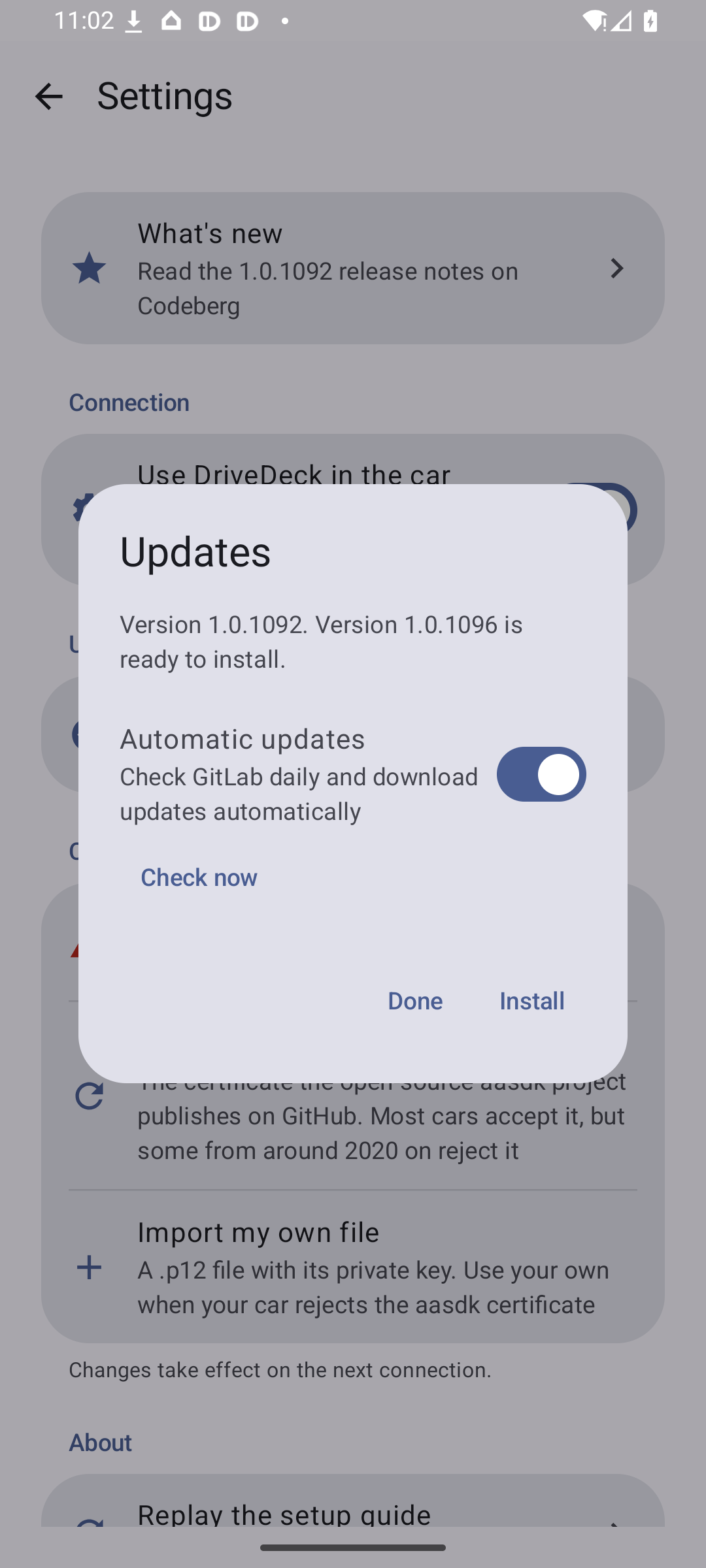
| Check for updates | Main Settings; review the current version and request an update check. Installation waits for disconnection. |
| Automatic updates | In the update dialog, enable daily GitLab checks and automatic downloads. Installation still waits for disconnection. |
| Certificate download, import and removal | Main Settings; choose the client certificate used for connection. See Setup and the linked certificate guide. |
| Trusted head units | Appears when receiver records exist. Review the saved identity, return to certified verification, or review the explicit option for a receiver without a certificate. Changes apply on the next connection. |
| Replay setup guide | Main Settings → About; reopen the guided setup. |
| What's new after updates | In car Settings → More, choose whether the change list appears on the first connection after an update. You can also open What's new there. |
Usage notes
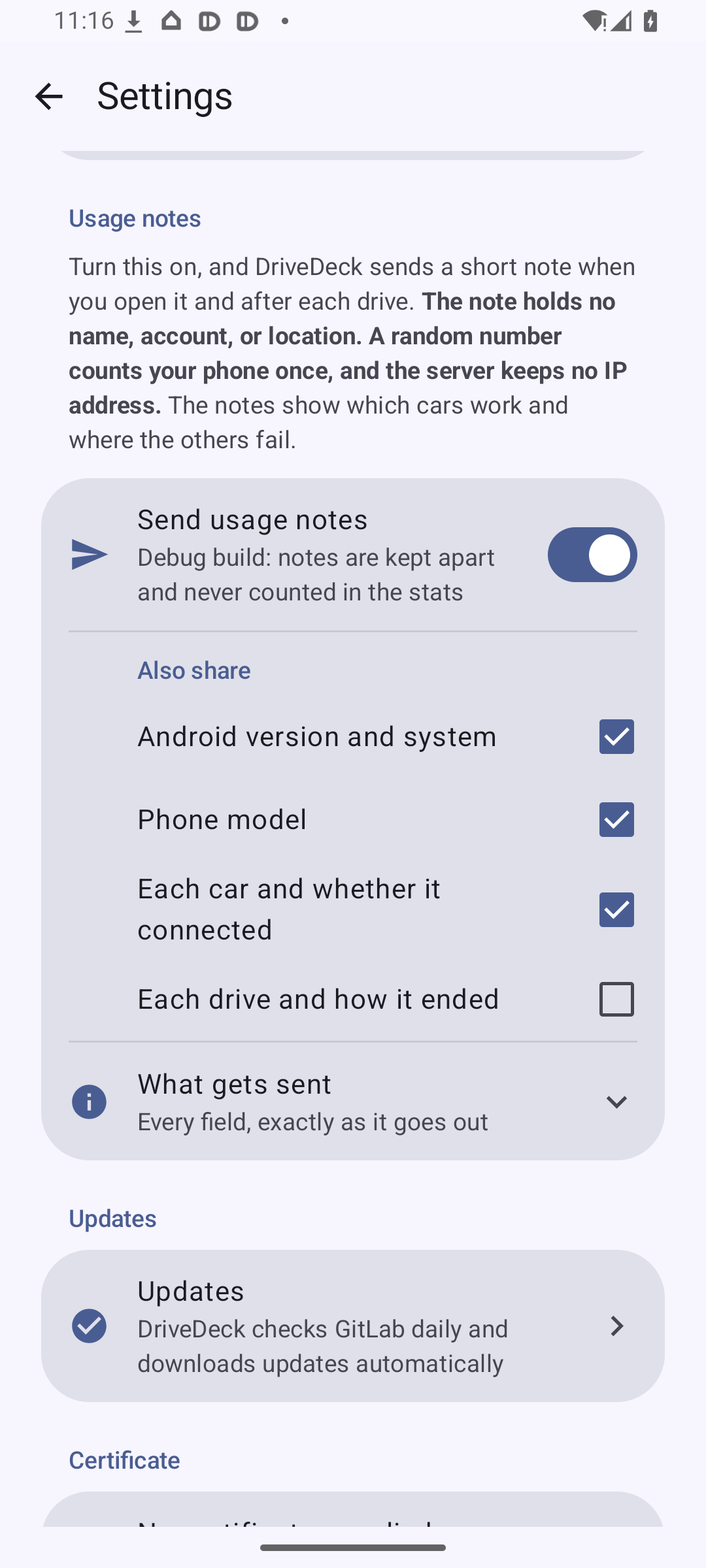
When a build has a configured destination for usage notes, Send usage notes is a separate choice in phone Settings. When enabled, the Also share checkboxes control Android version and system, phone model, each car and whether it connected, and each drive and how it ended. What gets sent shows the note assembled from the current choices. The settings section is hidden when no destination is configured; availability can therefore differ between builds.
The reference covers release settings. Test builds additionally expose diagnostic tools and the debug-badge switch; these are not needed for normal setup.
The head-unit screenshots above were captured at 1280×720 using the emulator and Desktop Head Unit, and the phone screenshots on an earlier release. Both were taken before 2.1, so a screen may differ in small ways from the current version.