Connect to your car
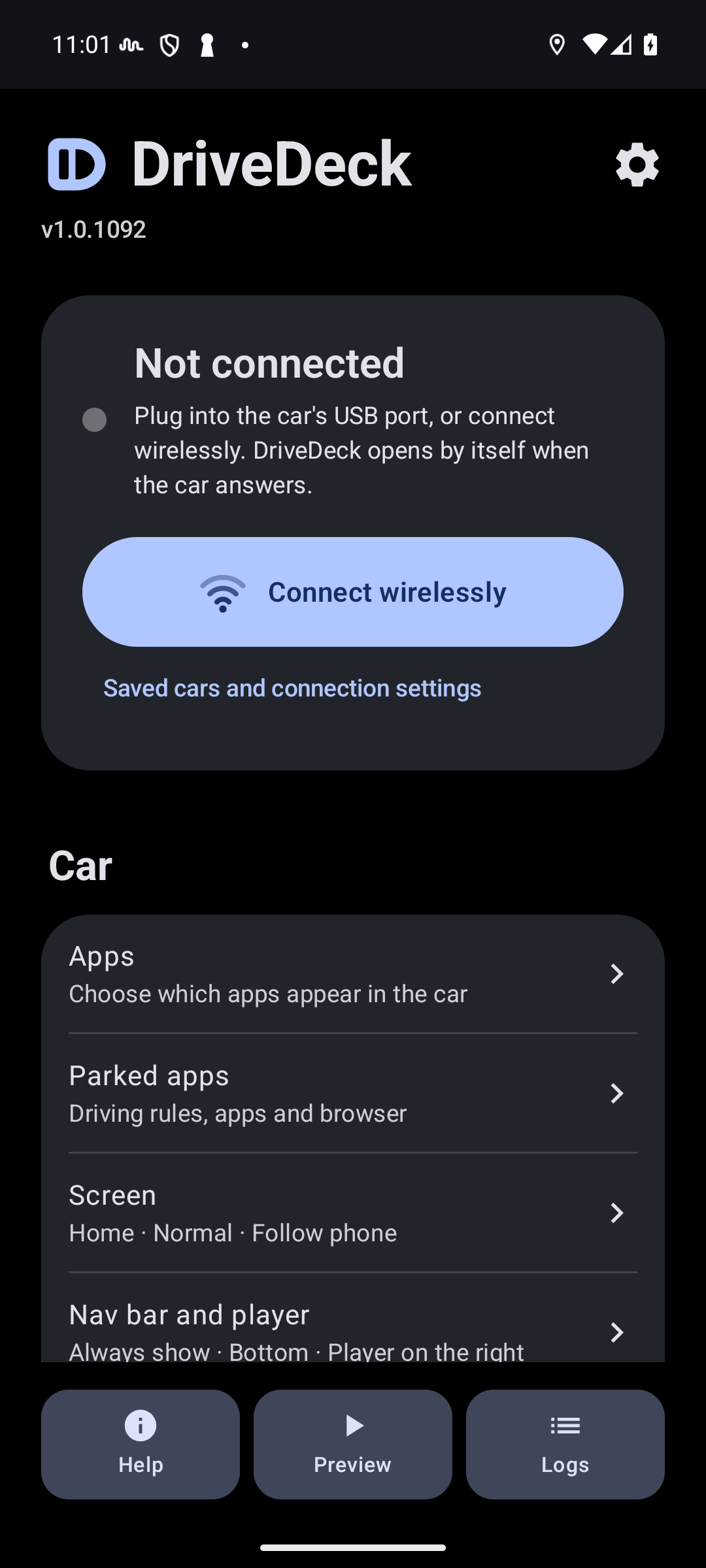
DriveDeck uses Shizuku to help with setup and connection. You need an Android 13 or newer phone, Shizuku API 13 or newer, and a compatible car display. For wireless, pair your phone and car over Bluetooth first.
Set up the phone
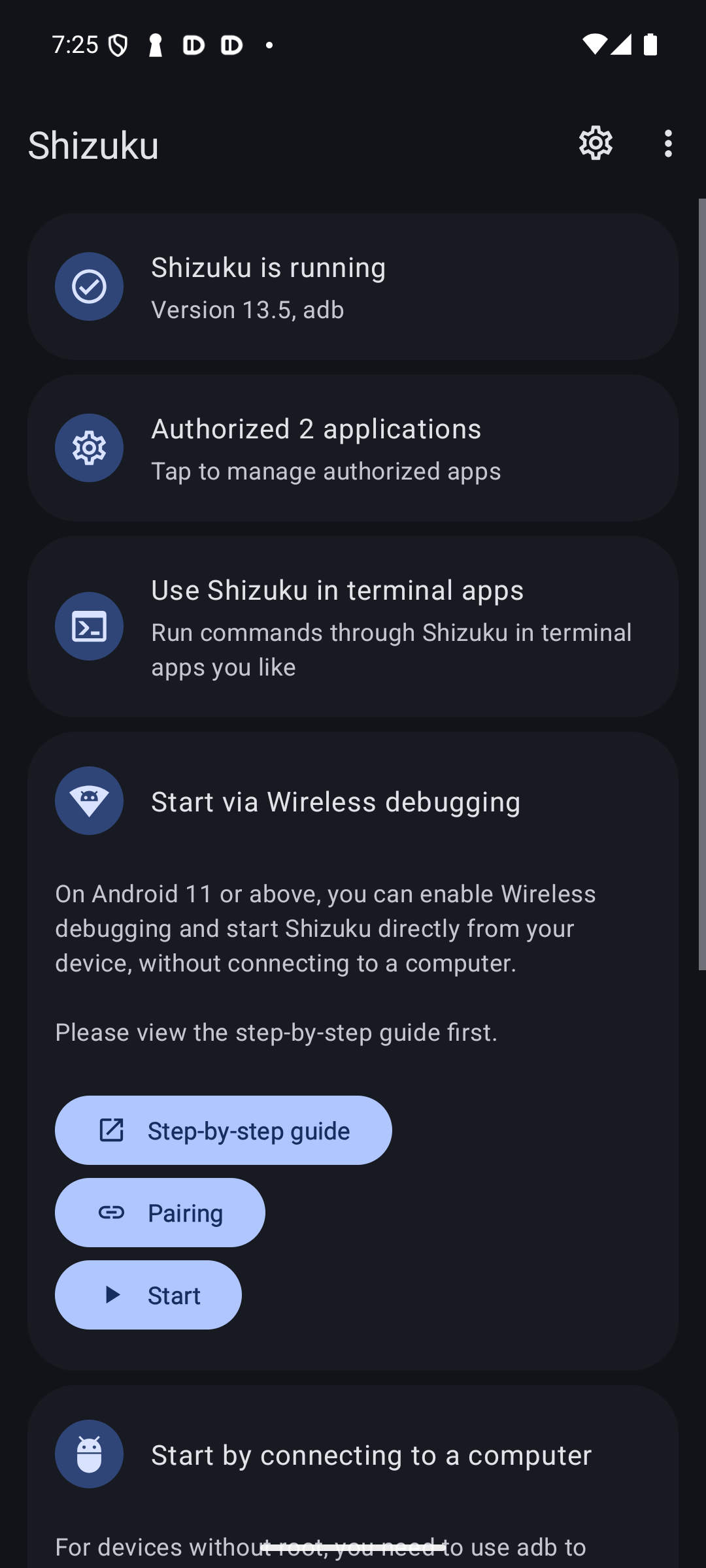
- Install and start Shizuku. Without root, use Android's Wireless debugging pairing flow in Shizuku. Follow the illustrated Shevery setup guide for installation, developer options and pairing. A compatible Shizuku installation you already have also works. After a phone restart, start Shizuku again.
- Open DriveDeck and allow Shizuku access. Follow the setup pages for the features you want to use. DriveDeck can perform many grants for you; follow any Android prompts or manual fallback shown on your phone.
- Review Android Auto. DriveDeck can disable the stock Android Auto app to stop it claiming the connection. This disables it rather than uninstalling it; you can re-enable it in Android settings.
- Choose a certificate. See Choose a certificate below.
Choose a certificate
Your phone presents a certificate to the car when it connects, and the car decides whether to accept it. This is what decides whether a car works with DriveDeck, not the make or model.
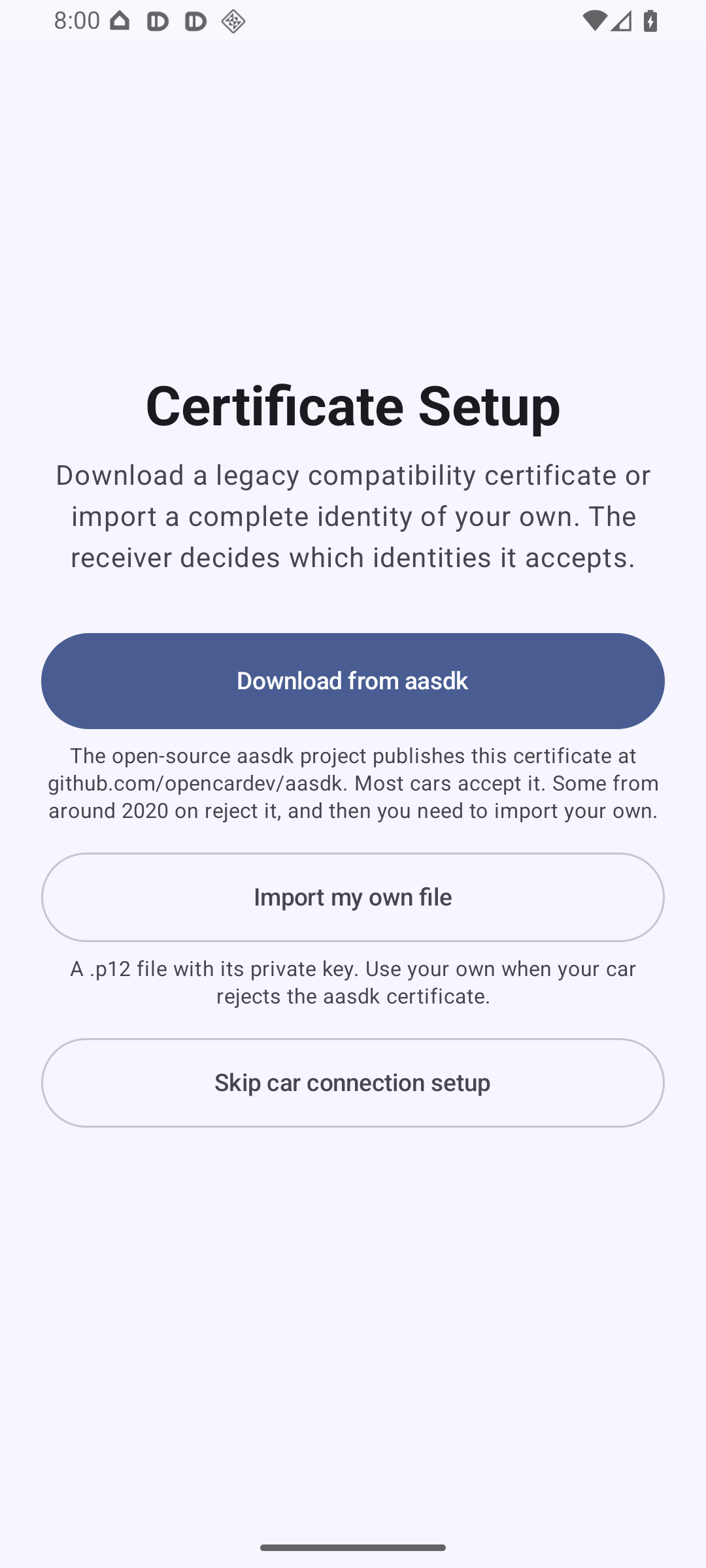
DriveDeck ships without a certificate. Setup asks where yours comes from:
- Download the certificate that the open-source aasdk project publishes. Many head units accept it.
- Import a certificate of your own, as a PKCS#12 file. Some head units run stricter checks and refuse the downloaded one, and the car's model year is not a reliable guide. In those cars, a certificate of your own is what makes the difference. The certificate guide explains how to prepare an import file.
The certificate stays on your phone. DriveDeck never uploads, backs up or logs it. A certificate that one car accepts may not work with another. You can change the choice later under Settings in the phone app, where the certificate can be downloaded, imported or removed. See also Will it work in my car?.
Connect
USB: connect the phone to the car with a data-capable cable and follow the car and phone prompts.
Wireless: choose Connect wirelessly and select your paired car. Follow the Android association prompts. Once configured, DriveDeck can reconnect when the car's Bluetooth connects. Wireless behavior depends on the phone, car and permissions; if it fails, check Shizuku and use the troubleshooting steps in the full setup guide.
Open Saved cars and connection settings to review a car's automatic reconnect choice and retained Wi-Fi profiles. Forgetting a car and removing its saved network are separate actions; the screen shows which profile belongs to which car.
If you get stuck
- Shizuku is not running: start it again, especially after rebooting, then return to DriveDeck.
- A setup step fails: use the manual fallback shown by the app and check the permission in Android settings.
- The car does not connect: check the cable or Bluetooth pairing, the selected certificate and the car's Android Auto support. See Will it work in my car?.