title: Talk to your car description: An assistant that runs on your phone and acts on the car: navigation that starts itself, music, radio, calls and messages. LiveKit Cloud is the alternative.
Talk to your car
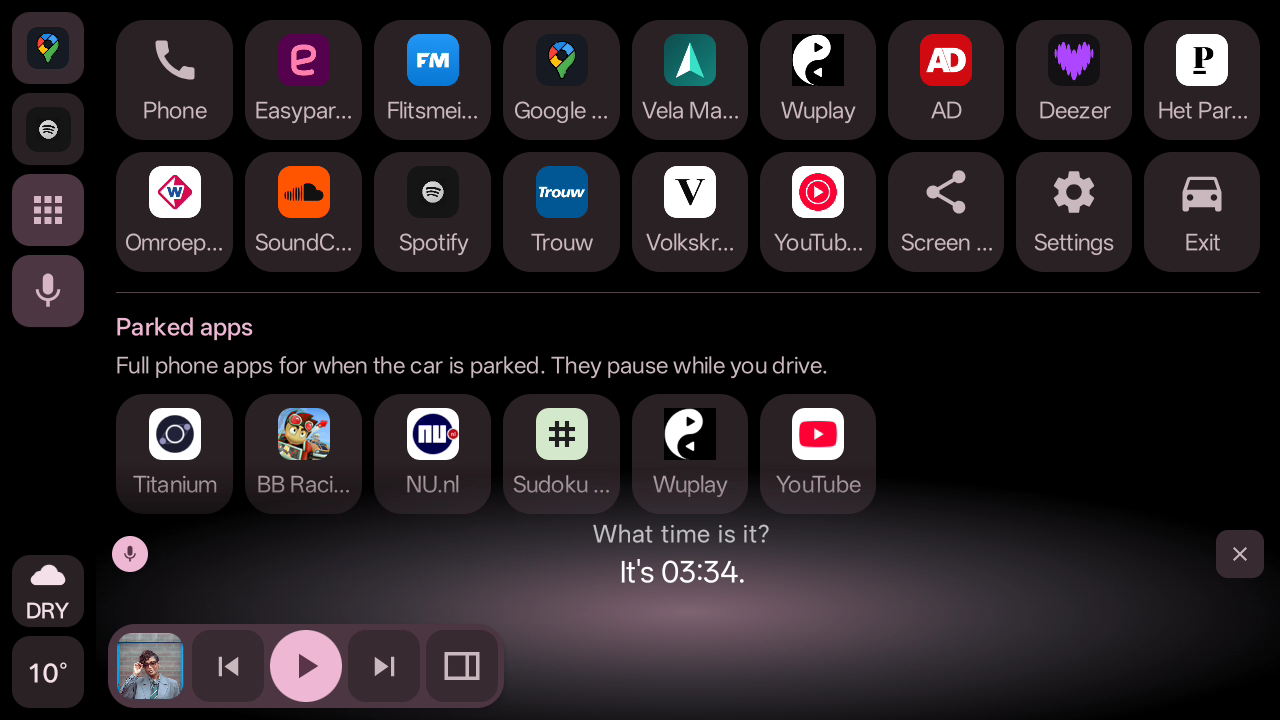
A spoken request sent through the head-unit microphone path on the phone.
Tap the mic in the taskbar or the wheel's talk button, or say "Hey DriveDeck" when you have turned that on. Ask in your own words, in the language you speak. With On this phone chosen, the assistant's speech recognition, model and voice run on the phone when configured. To identify an artist, DriveDeck may send the artist name to Deezer's public catalogue. Requests handed to navigation or media apps use those apps' normal services.
What you can ask
The assistant works through a set of tools, and carries out what you ask on the car.
- Navigation. "Navigate to the nearest gas station", "take me home" or "navigate to Mum". The route starts by itself after a three-second countdown that you can cancel. Ask "when do I arrive?" for the arrival time and the time left, stop the route, or ask for a navigation control or a road-incident report, which DriveDeck passes to the map app when it offers one. See Navigation and maps.
- Music and radio. Play a track, artist, album, playlist, genre or podcast, in a named app or in your default one. Ask for a Radio station, a kind of radio or "something like this". Pause, resume, skip, go back, replay, shuffle, repeat, like, or ask "what's playing?". Set or change the volume. See Radio by voice.
- Calls and messages. "Call Mom", answer or decline a ringing call, call the voicemail, hear your new messages, or send or reply to one. A message is read back before it is sent. See Calls and messages.
- The car. Open an app, show a screen such as the map, apps, settings, weather, the dashboard, the phone or your notifications, go back, list your apps, and ask for the time or the weather. Ask for help to hear what you can say.
Naming an app overrides your default for that request, for example "play Blinding Lights on YouTube Music" or "navigate to Utrecht using Google Maps".
Start with "Hey DriveDeck"
Once you have chosen an assistant, you can turn on Start with Hey DriveDeck in the voice settings. Saying the phrase then starts the assistant, like the voice button does. It is off by default. The phone's microphone listens for it on the phone itself while DriveDeck is on the car screen. DriveDeck uses its own small wake-word model.
Saved places
Save places under Saved places and use their names: "navigate to Gym". The assistant checks every address with the phone's own lookup. See Saved places.
The on-phone assistant
| Part | What it is |
|---|---|
| Hearing | Parakeet Ultra by Moondream, built on NVIDIA's Parakeet, through LiteRT |
| Brain | Gemma 4 E2B by Google DeepMind, through LiteRT-LM |
| Voice | Pocket TTS by Kyutai |
The three download together from the model picker, once. It needs a phone with 6 GB of memory or more. Whether the assistant runs is decided per phone: DriveDeck reads the CPU's feature flags and counts its performance cores, alongside memory and Android version checks, and the settings say exactly why when a phone can't: too little memory, a processor too slow to answer in time, or an Android version too old. DriveDeck can try an eligible GPU and fall back to the CPU; availability varies by phone. A phone that has run the model keeps the assistant, and Copy assistant diagnostics puts a paste-ready summary on the clipboard for issue reports.
When the car connects, DriveDeck starts its speech and model services from the background through Shizuku, when supported and configured.
LiveKit assistant
Choose LiveKit for a full conversation with a large model instead of the on-phone one. It works on any phone, including ones that can't run the on-phone models. It is off until you set it up, and a LiveKit Cloud project is all you need to start: create one, enter its address, API key and API secret in DriveDeck, and six voice models billed to that project are available. No provider key and no other account are needed.
What it brings:
- A real conversation. Ask follow-up questions, change your mind halfway, or talk about something that has nothing to do with the car. You can interrupt it while it speaks.
- Works with a LiveKit project alone. Gemini 3.8 Live, GPT Realtime 2.1, GPT Realtime 2.1 mini, Grok Voice 3.0, Rime Prism and GPT-Live 1 run on LiveKit Cloud and are billed to your LiveKit project. The settings mark each one "LiveKit · billed to your LiveKit project". Gemini 3.8 Live is the default when you have no provider key that can run a way to talk, and is recommended for the languages it lists.
- Three ways to talk. Most natural uses a full-duplex model that listens while it speaks, like a phone call. Natural, takes turns uses one voice model that answers quickly. Widest choice of models uses separate models for listening, thinking and voice, and is a little slower. The first two work with your LiveKit project alone; the third needs provider keys.
- More models with your own keys. Provider keys are optional. A key adds that provider's models: OpenAI, Anthropic, Google Gemini, xAI, Mistral AI, DeepSeek, ElevenLabs, AssemblyAI and Speechify, plus the models on OpenRouter. You pay that provider directly for what you use, at its own rates, with nothing added by DriveDeck, and choosing a small, fast model keeps the cost of a drive low. Only the models your project and keys can run are offered, and each is rated for the languages you speak.
- It still acts on the car. Navigation, music, radio, calls, apps and screens work as they do with the on-phone assistant.
- Current information. Web search is used only when the assistant needs something current. DuckDuckGo works without a key; Tavily and Brave Search work with theirs.
- Many more languages than the seven the on-phone assistant speaks.
- No server to host. The agent ships inside DriveDeck and runs on your phone.
The assistant that runs the conversation comes with DriveDeck and runs on your phone, in DriveDeck's own files; the models it uses run in the cloud. You never run or host an agent, and no separate server is needed. It runs only during a connection test or while the car is connected. Choosing LiveKit sets it up in the background, which downloads several hundred megabytes once and uses about 1.2 GB of storage. You choose how it talks: most natural, natural with turns, or the widest choice of models, and only the models your project and keys can run are offered.
While you talk, your voice and your choices go to LiveKit Cloud and the providers of the models you chose, together with the names of your saved places, your media and navigation apps and your radio favorites; contacts, messages, your music library, other apps and what's playing stay on the phone. With a model billed to your LiveKit project, your speech goes to LiveKit Cloud and on to that model's provider through LiveKit, and no provider key is sent. Provider keys you enter in the app are stored encrypted on the phone. A key is sent with a conversation, to LiveKit Cloud and the assistant on your phone, only for the models in use, and the key of a search service that needs one (Tavily or Brave) only when that service is the one in use. Reading and sending messages by voice isn't supported there yet.
Models billed to your LiveKit project
These six voice models run on LiveKit Cloud itself, so your LiveKit project pays for them and you need no provider key:
| Model | Way to talk | Languages |
|---|---|---|
| Gemini 3.8 Live | Natural, takes turns | About a hundred, including English and Dutch |
| GPT Realtime 2.1 | Natural, takes turns | Multilingual |
| GPT Realtime 2.1 mini | Natural, takes turns | Multilingual |
| Grok Voice 3.0 | Natural, takes turns | Sixteen, not including Dutch, so it isn't offered when Dutch is one of your languages |
| Rime Prism | Natural, takes turns | Ten, including English and Dutch |
| GPT-Live 1 | Most natural | Multilingual |
Your own keys come first. A model on a provider key you entered is always preferred over a model billed to your LiveKit project, and nothing moves you onto one of those unless you pick it or have been told. With a key that can run a way to talk, DriveDeck starts on the models of your keys: Widest choice of models when they run it (an OpenAI and an OpenRouter key do), otherwise the first way to talk they do run, each on the default model for it when your keys run that model, else the best model they do run. The six models billed to your LiveKit project are the default only when no key of yours can run that way of talking: with no key at all, that is Natural, takes turns on Gemini 3.8 Live (and Most natural on GPT-Live 1 where taking turns cannot run). Gemini 3.8 Live through LiveKit is still marked Recommended for the languages it lists, and is one tap away in the picker, but it is not chosen for you when you have a key. If the default doesn't list one of the languages you chose, DriveDeck uses the best model that does. If you already chose a way to talk or a model, you keep it for as long as it can be used. The same model on your own key is a separate choice, and the settings name its provider instead of LiveKit. Through LiveKit, Grok Voice 3.0 runs without the voice and the low-latency setting DriveDeck gives it on an xAI key, and without xAI's own web search; web search uses the search service you chose in the app.
You see the billing note first. A note under How should it talk? says that the model in use is billed to your LiveKit project and what LiveKit's credit does when it is used up. A model billed to your LiveKit project is used for a conversation only after you have seen that note once: when the settings show it, or when you pick such a model. Until then the assistant isn't ready for conversations and starts nothing. The LiveKit settings say "Check the note under How should it talk? before the first conversation.", and the microphone in the car stays there: pressing it, or the voice key, shows and says "Open the LiveKit settings in DriveDeck on the phone once before the first conversation: the model in use is billed to your LiveKit project." If your session runs on your own keys, you are never asked. If you remove the key of a model you chose, the best model your other keys run takes its place; only when none of your keys can run that way of talking does a model billed to your LiveKit project take its place, and that happens only once you have seen the note. What you chose stays stored, and comes back with its key.
What LiveKit charges is up to LiveKit, and it can change. As of November 2026, LiveKit's free plan includes $2.50 of inference a month, which LiveKit estimates at about 50 minutes depending on the model (LiveKit's inference pricing). As of November 2026, on the free plan that credit is monthly and is a hard cap: when it is used up, requests fail, and nothing is charged beyond it; LiveKit's page says when it starts again. Paid plans are charged beyond their included credit, so a project on a paid plan pays for these models once its included credit is gone. On LiveKit's price list on that date, some of the six are priced per token and others per minute of audio. DriveDeck shows neither prices nor what is left of the credit, so check LiveKit's page for the current numbers.
When the credit runs out
When a model billed to your LiveKit project is refused in a way that looks like a used-up credit or a rate limit, the car screen shows "Your LiveKit project's included credit for this month is used up. Add a provider key, or use the on-phone assistant." and says only the shorter line "My LiveKit credit for this month is used up.", which suggests nothing. It cannot tell a used-up credit from a rate limit, so it gives the same message for both. A refusal that names a limit on how many sessions run at once, or has any other cause, is not taken for credit: it shows the message for a model that could not be reached, below. After a credit message, a provider key gets you going again when that key can run the way of talking in use and you had not picked the model billed to your LiveKit project yourself in the model list: the model on your key then takes its place. If the key cannot run that way of talking (a Google key cannot run Most natural, for example), or you picked the billed model yourself, change the model or the way of talking. Then:
- If the on-phone assistant is installed and your phone can run it, it answers for the rest of that car connection, and the car says once that it has switched. The request that failed is not repeated, so ask again. This lasts until the car disconnects, or you change the model, a provider key or the LiveKit project. Your assistant setting stays as it was, and the next time the car connects DriveDeck tries LiveKit again.
- If it isn't installed, or your phone can't run it, nothing takes over: the car shows and says the credit message again each time you press the microphone, until the car disconnects or you change the model, a provider key or the LiveKit project.
- If the car said it was switching and the on-phone assistant then does not start, the car shows and says "The on-phone assistant couldn't start." and the credit message stands from then on. If the on-phone assistant had just failed to start, and is not tried again for a while, when the credit runs out, no switch is announced or attempted, and the credit message stands.
Any other failure of the model, including one on your own key, shows "The assistant's model could not be reached. Try another model in DriveDeck's settings." With three separate models (Widest choice of models), one failed request by one of them does not end the conversation, so the car says nothing until the conversation really ends for that reason.
Languages
English, Dutch, German, French, Spanish, Italian and Portuguese are the seven languages the on-phone assistant hears and speaks. The LiveKit assistant works in many more: under Languages you speak you can pick up to two, which the assistant then listens for only, and then only models that support them are offered; leave it on automatic unless it mishears your language. The car screen and phone app are in English and Dutch, with the other five partly translated. See the questions and answers.
Use DriveDeck for spoken directions
In Settings → Voice and assistant, Spoken directions controls DriveDeck's own spoken directions. When the assistant is enabled, Navigation apps speak with DriveDeck can also make DriveDeck the phone's default text-to-speech engine. This is a phone-wide Android setting, so other apps that use the default engine may use it too.
Turn the option on and, if Android opens its text-to-speech settings, choose DriveDeck as the preferred engine there. When you turn it off and DriveDeck has permission to change the setting, it tries the previously selected engine if it is still installed, then another available engine. Otherwise Android's settings open so you can choose one yourself. An alternative engine must be installed before it can be selected. You can also change the preferred engine in Android settings at any time.
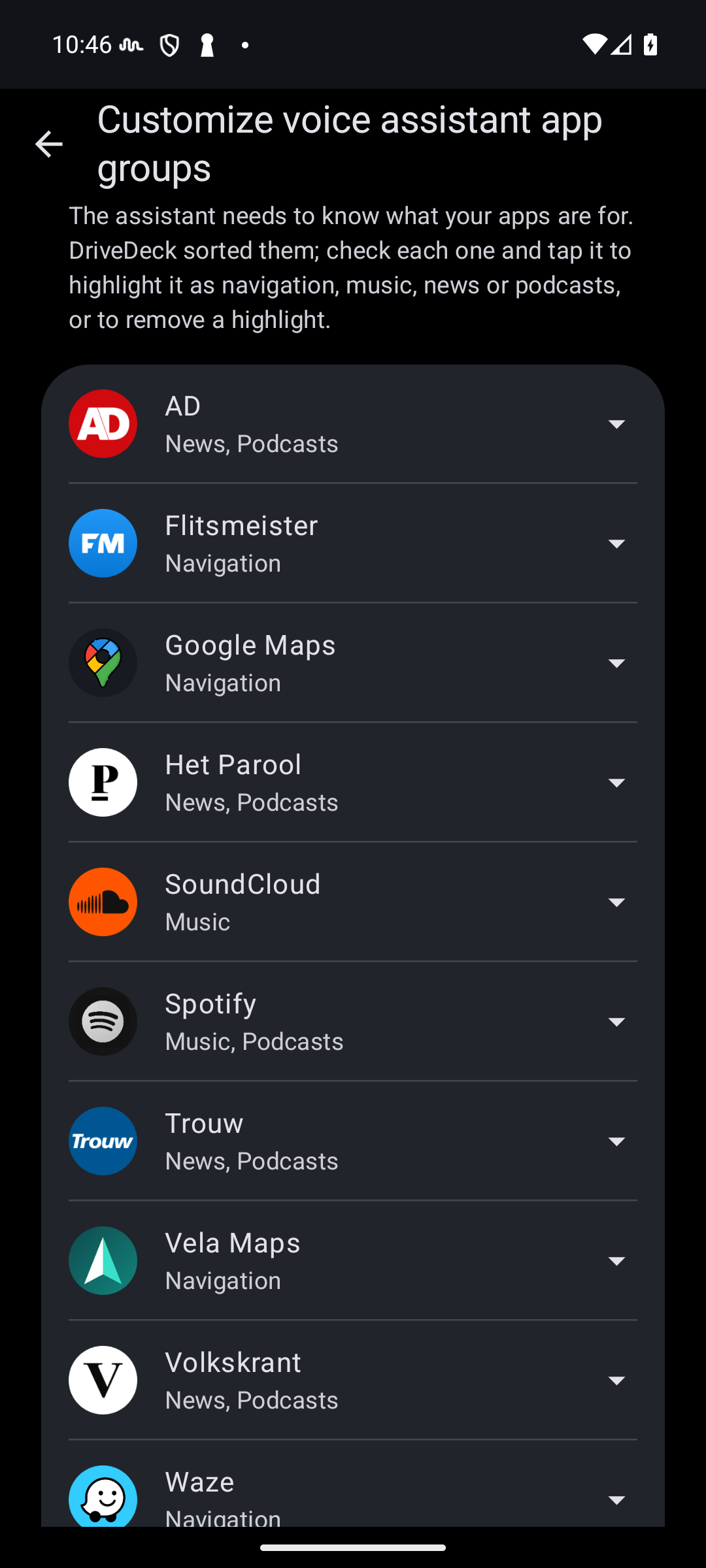
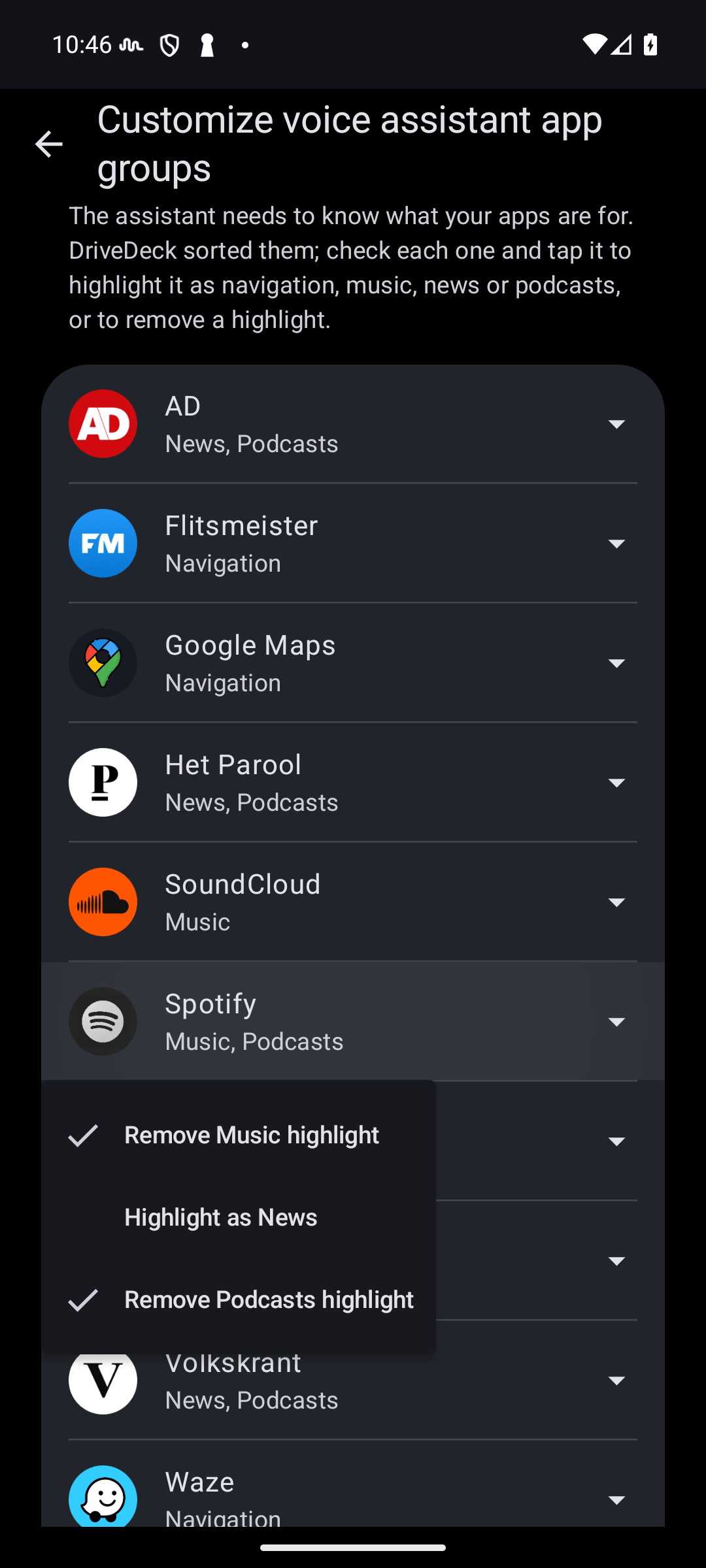
Under Apps → Customize voice assistant app groups, review which installed apps are highlighted for navigation, music, news and podcasts. An app can belong to more than one group; its own provider still determines the content and actions it supports.
Full details: the model guide and How the assistant fits your phone.